

How It Works
The Address Book (commonly abbreviated as AB) is a section of the synchronization server and management of the Federation of geographically distributed video conferencing servers. The Address Book represents a list of accounts and groups “mirrored” from the List subsection (under Accounts). The contact and group lists for WS-type subscribers using Vinteo Desktop version 1.18.0 or higher are formed from the Address Book.
Purpose of the Address Book
When using the synchronization and management server for the Federation of geographically distributed video conferencing servers (hereinafter – SSG server), it becomes possible to add accounts and groups available to other servers to contact lists and publish your own. Thus, a distributed shared Address Book is formed.
Getting Started
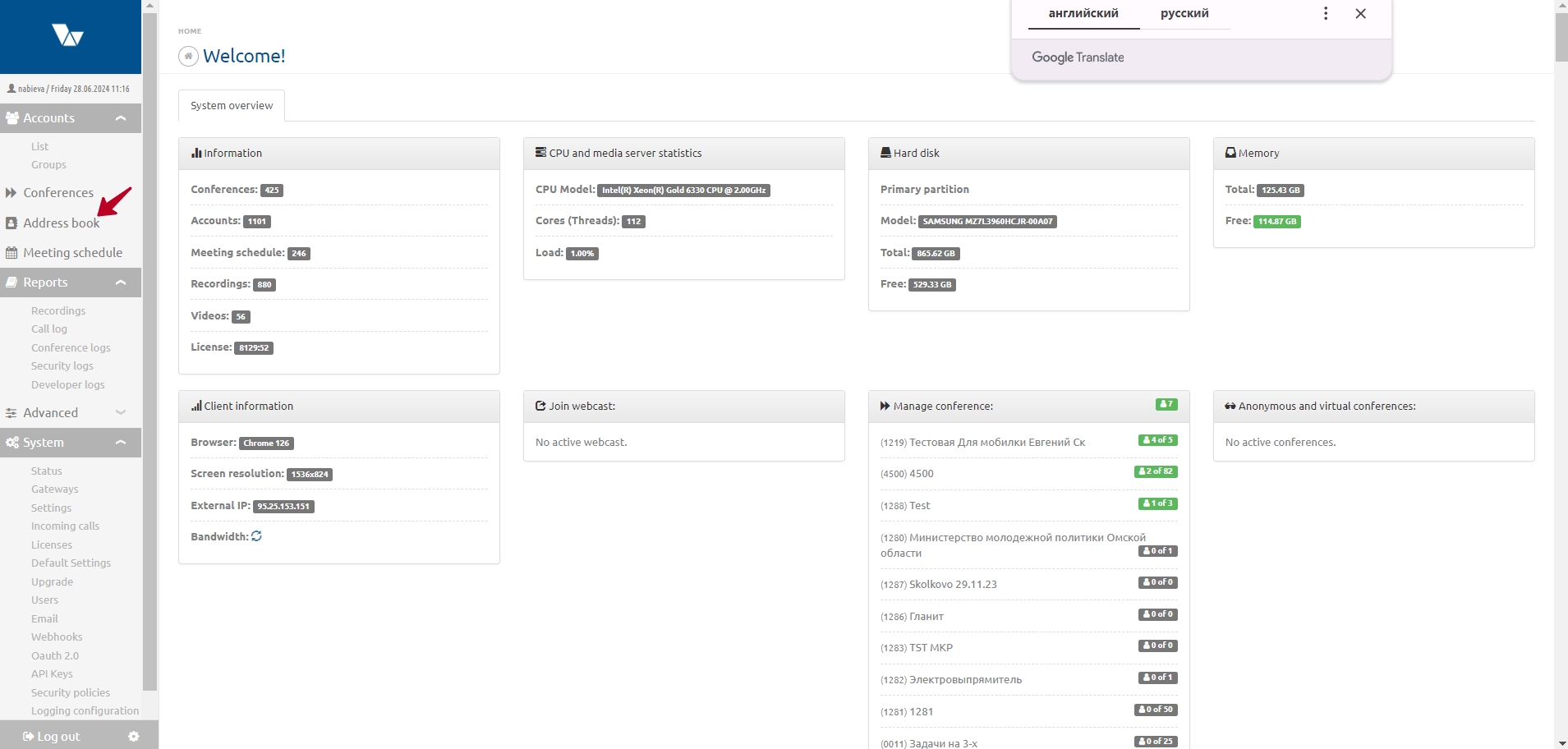
After installation, the Address Book will be displayed on the main server page in the configuration menu.
Main Controls
The main control elements are located at the top of the AB page.

- a case-sensitive search field with a magnifier button for searching contact records;
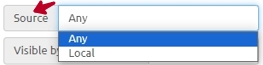
- a filter that allows sorting contacts depending on the source: all, local, or imported from another server;
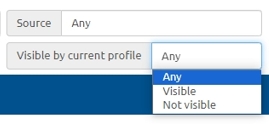
- sorting by visibility type in the current profile — you can set “any”, “visible”, or “invisible”;
- the access profile selector, which allows you to quickly find the required profile for further configuration or editing. Initially there is only one — “Default”, which is applied to any new contact or group;
- the pencil icon button opens the profile editing window. The profile with the access type “Default” cannot be edited;
- the button for adding a visibility profile, which can be created empty or based on another profile as a template. Information about creating and editing access profiles is provided in the section “Working with access profiles” of this document;
- the button for adding a group, which will later contain subscriber contact records. Information about creating and editing groups is provided in the section “Groups” of this document;
- the button for adding contacts; you can add subscriber accounts from the “List”, import from their local groups in the “List”, or create “Aliases”. Information about the methods of adding contacts is provided in the section “Working with contact records in the Address Book” of this document.
Contact hierarchy
When adding a group and contacts (items 7 and 8), it is possible to set a hierarchy by specifying a number in the “Weight” field. The larger this value, the higher the contact will be positioned in the list. To place a contact first in the list, set the highest number in the “Weight” field relative to the other contacts. Within each group, an independent hierarchy can be set.
Additional Controls
Selecting a group (or groups) and contact records using the checkbox opens a panel with additional controls that allow performing actions on each record separately or on multiple selected records.

The functionality is described from left to right; the numbers correspond to the list:
- checkbox for group actions, allows selecting all entries in the Address Book;
- counter of selected records. Group names are not counted as records;
- the “Add to groups” button opens a window that allows adding a subscriber record to one or several groups;
- a button that opens a window to confirm removing a record from groups;
- a button that opens a window where you can change the weight of selected contacts. The weight will be changed in all groups containing these contacts;
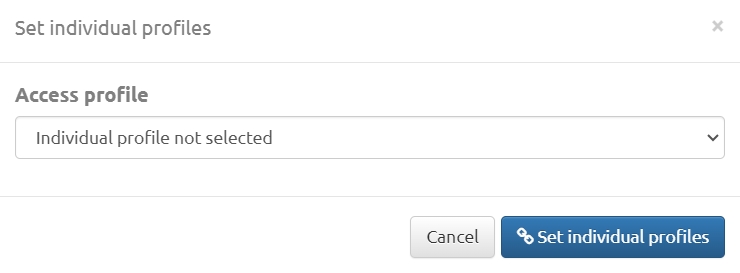
- a button that opens a window for assigning an individual profile to records and groups;
- a button that opens a confirmation window to delete contact records from the Address Book. Guest records cannot be deleted;
- the icon (open/crossed-out eye) for selecting groups and records for bulk actions, allowing you to toggle their visibility;
- a button that clears all selections and hides the additional controls panel.
Address Book Table Data
AB data is presented on the page as a table with the following columns:

- the column contains the group or record name;
- the funnel icon shows whether a profile is assigned to a group or record. If the default profile is used, there is no funnel next to the group or contact. If a contact belongs to several groups with different profiles, a funnel icon with a “+” will appear next to this record. You can see which profiles are assigned to this contact in other groups using the tooltip when hovering over the funnel; to see which groups it belongs to, open the contact editor by clicking the record. A contact belonging to several groups that have their own access profiles will see the result of the sum of all these profiles in their Address Book;
- in the “Number” column, the number of records in the group or the assigned number is displayed;
- in the “Source” column, information is displayed about whether a local group is available to other servers (“Published/Private”) or the name of the server from which a “Published” (guest) group was received, available in address books on other servers. The server name is assigned by the SSG server.
Working with Contact Records
For a subscriber account card to appear in the Address Book, and then in the AB of an authorized local Vinteo Desktop user, the following steps must be taken:
- add one or several subscriber cards, or import them from a local group into the AB using the “Add contacts” function in the Address Book, or enable the “Mirror in Address Book” toggle in the subscriber card in the “List” section. This can be done both in an existing card and when creating a new one.
When exporting from a local group, only contacts are transferred. If you do not select a specific group or manually enable “Mirror in Address Book” in subscriber cards, they will be placed in a special base group called “No group”. Later, you can distribute the contact records from this group into newly created AB groups. The base group cannot be “Published”.
- Also, the record must be made visible in the Address Book in the profile assigned to the subscriber. To do this, find the record in the profile by clicking the arrow before the profile name. A list of profile records will open. Then you need to make the record visible using the open/crossed-out eye icon.

- If the server is not part of the “Federation”, this step is not mandatory. However, for a Federation of servers connected via the SSG server, and in order for a contact record to appear in the address books of Vinteo Desktop users on remote Federation servers, it must belong to a “Published group” on the local server and be visible in profiles on remote servers, and vice versa. Such a record on a remote server is called a “Guest”. More details on how to do this are described in the next section about working with groups.
Guest contacts received from Published groups of neighboring Federation servers will be added to the local subscriber card list (the “Subscribers” section) and will have the type “Loop”. The numbers of such subscribers will be converted by adding prefixes corresponding to each server in the SSG settings.
Let’s consider an example of subscriber number conversion. Suppose numberPoolPrefix: “11” for the HQ server, “22” for Branch 1, and “33” for Branch 2. There are three subscribers with number 100 on the HQ, Branch 1, and Branch 2 servers. The guest number of the HQ subscriber on Branch 1 and Branch 2 servers will be 11100, the guest number of the Branch 1 subscriber on the HQ and Branch 2 servers will be 22100, and the guest number of the Branch 2 subscriber on the HQ and Branch 1 servers will be 33100.
Aliases
Aliases are a tab in the “Add contacts” window of the SSG server.
Aliases allow direct calls from Vinteo Desktop to conferences of Federation servers and to conferences of Vinteo servers not part of the Federation. Aliases enable calling Vinteo T and ST terminals that are not registered on Federation servers.
Creating an Alias
When creating an alias, the name can be thematic, while the number must consist of the conference number and the IP address of the server where it is held. The alias contact record will appear in subscribers’ Address Books if it has active visibility status.
Groups
Groups are intended to combine subscriber contact records for convenient assignment of statuses, both publication and visibility in profiles. Groups can have their own names. Names may repeat, which is not recommended for “Published groups” to avoid confusion on other servers. Contacts that should be available in address books on other servers, i.e., in the “Shared” Address Book, must belong to “Published groups”. A group with this status will be visible in the Address Books of other Federation servers.
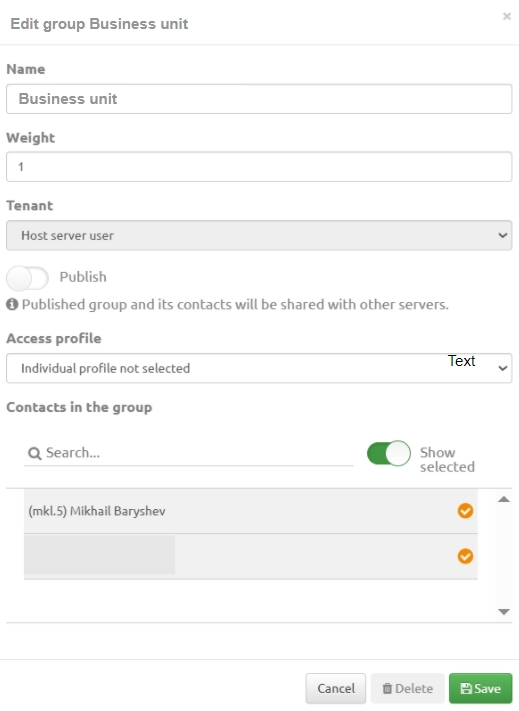
For example, for the top management contacts of HQ, Branch 1, and Branch 2, groups named “VIP” are created on each server, and since they should see each other’s contacts within the same company, these groups must be published.
For easier reading by the Administrator of any server in the “Shared” Address Book, it is recommended to add geographic affiliation to the name of the group intended for publication. For example, the group “VIP” on the HQ server will be named “VIP HQ”, in Branch 1 “VIP B1”, and in Branch 2 “VIP B2”. Groups with “Private” status will be located only on the local server and will not be available on other servers. In the Address Book, local groups are highlighted in blue, and guest groups in black.
Working with Access Profiles
Access profiles are lists of contact groups and contacts that will be loaded into the Address Book of an authorized Vinteo Desktop subscriber. By default, all groups and contacts belong to a common profile. Newly created profiles are initially empty but can inherit settings from the common profile or from existing profiles. A profile can be assigned to both groups and individual contacts.
Adding an Access Profile
First, you need to create a profile. For convenience, it is recommended to name it after the group it will be assigned to, without the geographic tag. A profile can be assigned to one or multiple groups or records. The “Edit profile” window is similar in functionality to the “Add contacts” window. The access profile addition window is opened by clicking the “+” button in the upper right corner of the AB.
Configuring an Access Profile
To configure an access profile, select it in the profile selector in the upper right part of the AB and enable visibility for groups and contacts.
All profiles with enabled visibility will be visible to the subscriber in their Address Book, if this profile is assigned to them. Any contact record from any group can be made visible in a profile.
Icon Meanings (Closed/Open Eye)
Black open-eye icon

Meaning for a group: all current records and newly added records to this group will be visible by default.
Meaning for a record: the record will be visible in the selected profile.
Gray crossed-out-eye icon

Meaning for a group: all current records and newly added records to this group will be invisible by default.
Meaning for a record: the record will be invisible in the selected profile.
Gray open-eye icon
Meaning for a group: one or several contact records have visibility enabled in a group that is invisible by default. For newly added records in this group, the group’s default visibility will apply.
Meaning for a record: the record is visible because it belongs to a group that is visible by default.
Black crossed-out-eye icon
No meaning for a group.
Meaning for a record: the record is invisible in a group whose default visibility is enabled.
Checking the Address Book Sent to a User
To see which groups and contacts are sent to a subscriber, click on that contact record on the SSG server to open the editing window. Then click the “View book” button. A list of contacts corresponding to the settings of the profile assigned to that subscriber will open.