Creation
To create a new conference, follow these steps:
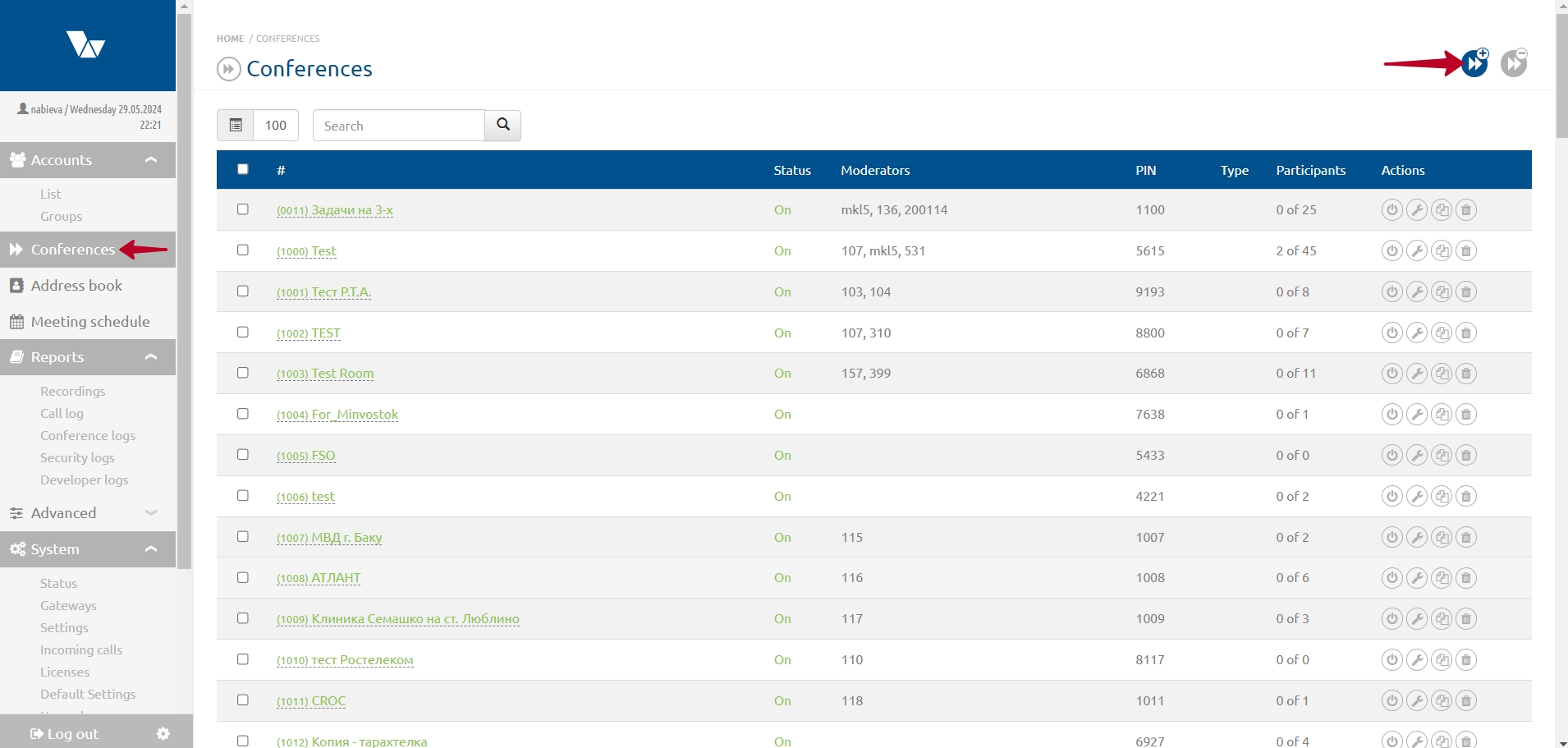
- In the main configuration menu, select “Conferences” — the Conferences page will open.
- Click the “Add new conference” button in the top right corner of the page.
- Fill in the conference details in the modal window.
- In the “Number” field, enter the conference number, which will be used to dial into the conference room.
- In the “Description” field, enter a description of the conference if necessary.
- In the “Moderators” list, select a conference moderator if needed. The moderator will manage the conference from their account on the VINTEO server.
- Click “Add”.
The created conference will appear in the list on the Conferences page.
The list contains:
* a field to select the number of conferences displayed in the list;
* a search field to find a conference by number or name;
* a checkbox for performing bulk actions;
* conference number and name;
* status (conference stopped/started);
* the “Moderators” column shows the number of the participant assigned as the moderator;
* the “PIN code” column shows the conference PIN, which can be changed in conference management;
* “Type” — indicates whether the conference is temporary. A temporary conference will be deleted after being stopped. If the “Repeat” option is not selected when scheduling the conference, it is considered temporary;
* “Participants” — shows the total number of participants and the number of participants currently in the conference;
* “Actions” — a column with buttons for starting/stopping the conference, accessing conference settings, copying the conference, and deleting the conference.
Copying
The conference copying feature is used to create one or more new conferences with settings that are almost identical to the original conference. Only the following parameters can be changed:
– conference number (the next available number is automatically selected);
– conference PIN code;
– web streaming settings.

Starting
To start a conference, follow these steps:
- In the main configuration menu, select the “Conferences” item — the Conferences page will open.
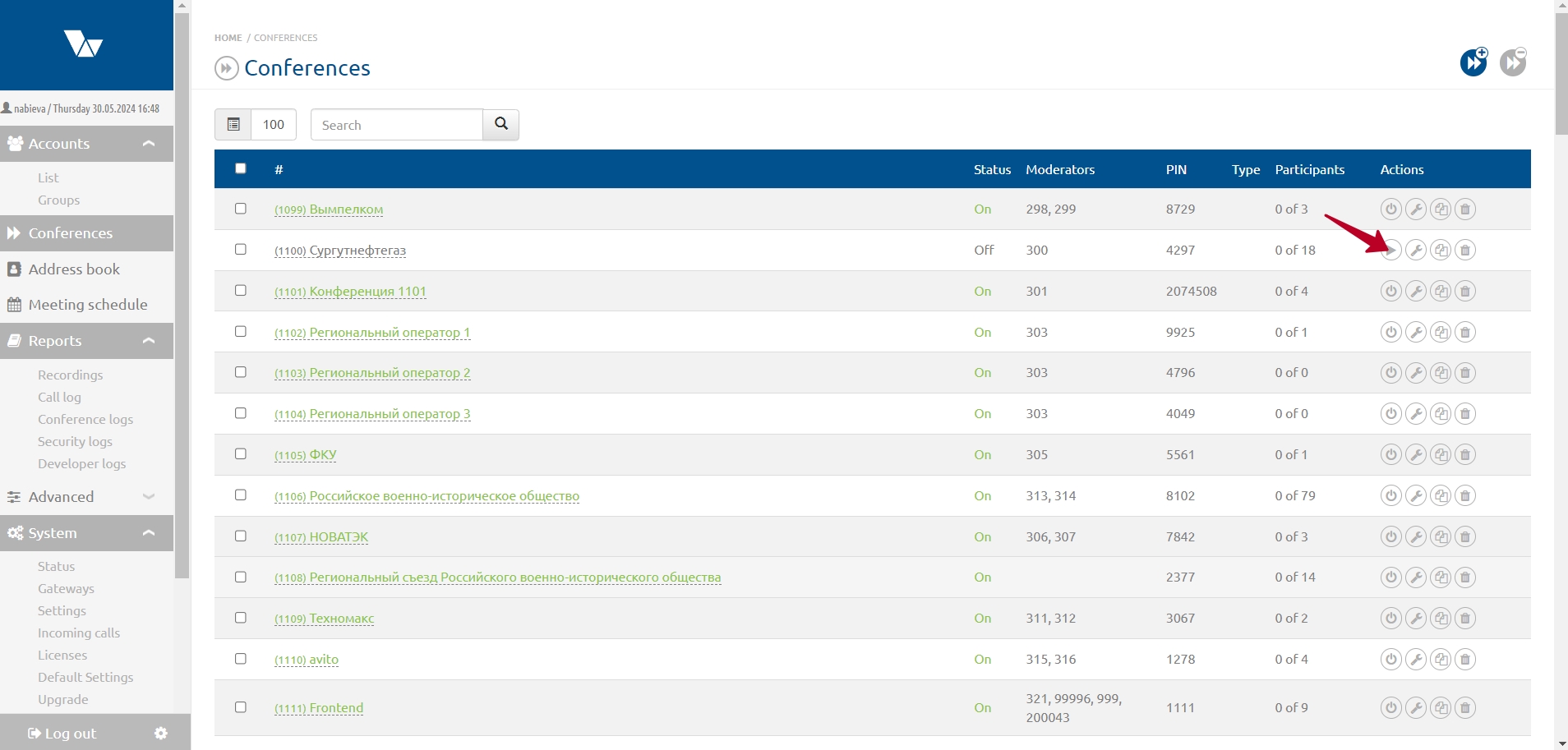
- Click the “Start” button in the row corresponding to the conference you want to start.
- In the “Start Conference” modal window, enable the “Call all participants” toggle to call all participants.
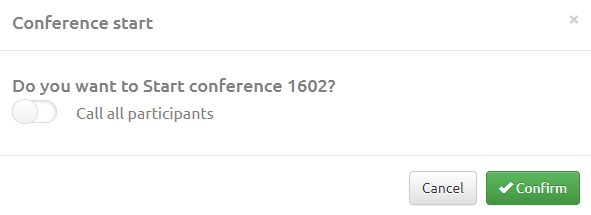
- Click “Confirm”.
Deleting
To delete a conference, follow these steps:
- In the main configuration menu, select “Conferences” — the Conferences page will open.
- Click the “Delete” button in the row corresponding to the conference you want to delete.
- Confirm the deletion by clicking “Delete” in the modal window.
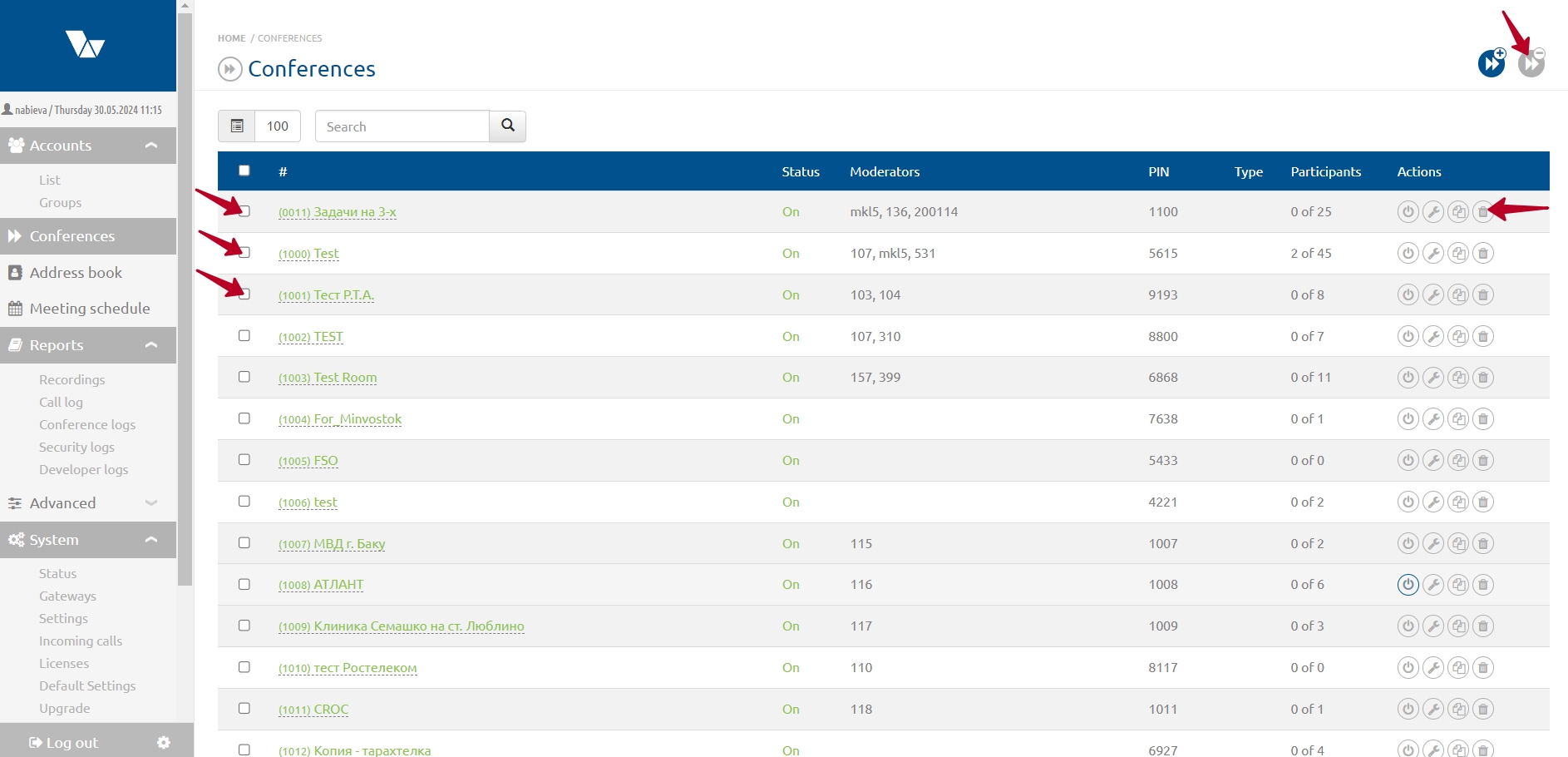
To delete multiple conferences:
- In the main configuration menu, select “Conferences” — the Conferences page will open.
- Select the conferences you want to delete by checking the checkbox in the leftmost column of the conference list, then click “Delete selected conferences” in the top right corner of the page.
- Confirm the deletion in the “Delete selected conferences” modal window.