

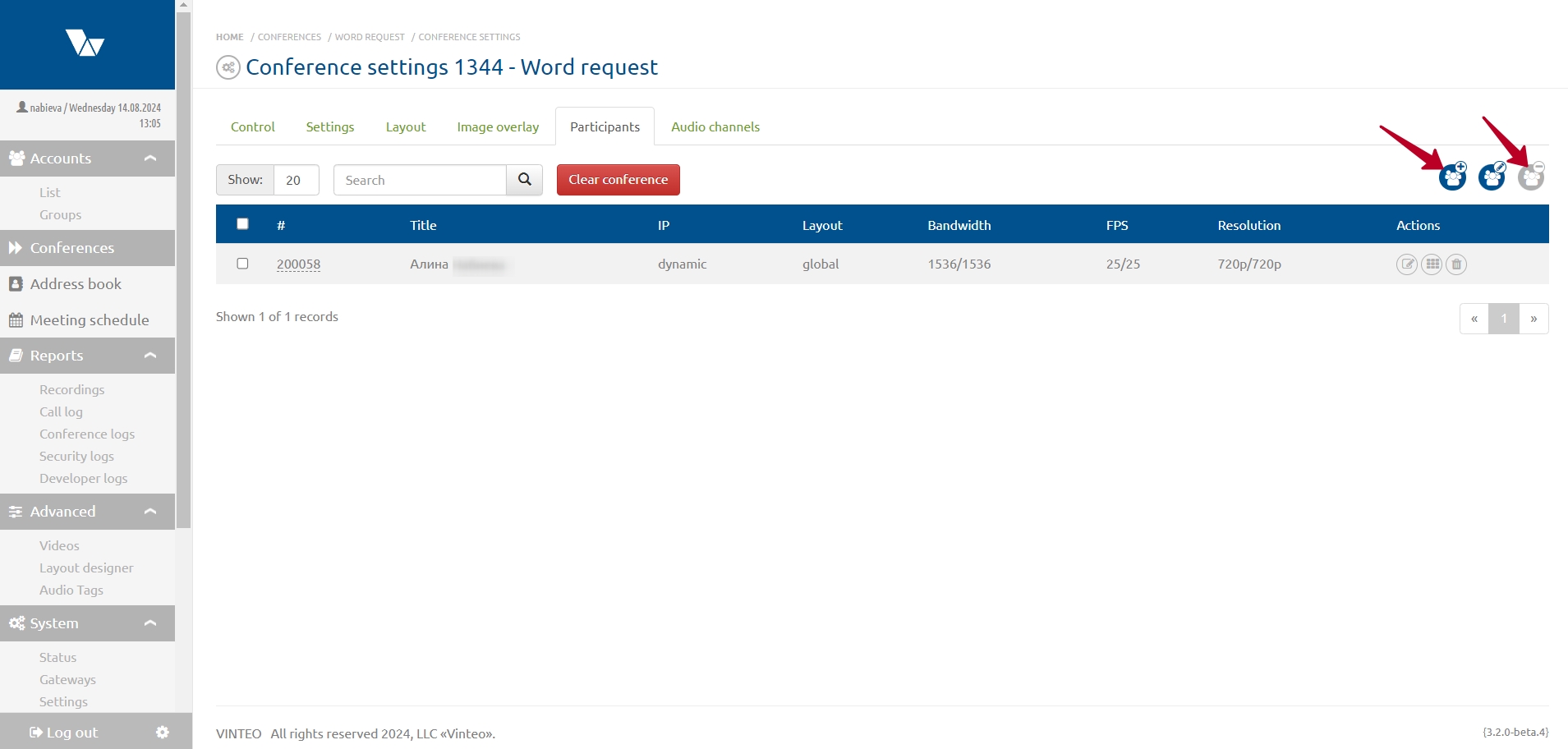
This page allows you to edit the participant list that was created when the conference was set up. The list consists of user accounts from the server. You can add new participants from the subscriber list, configure several participants at once, remove participants from the conference, or completely clear the conference of participants.
To add or remove participants, use the buttons in the top right corner with the corresponding names. Removing a participant from the list will disconnect the participant(s) who are currently online. Clicking the “Clear conference” button opens a window where you can confirm clearing the conference of participants.
Transferring participants from other conferences does not affect the invited list, and neither does participation in the conference by anonymously connected users.
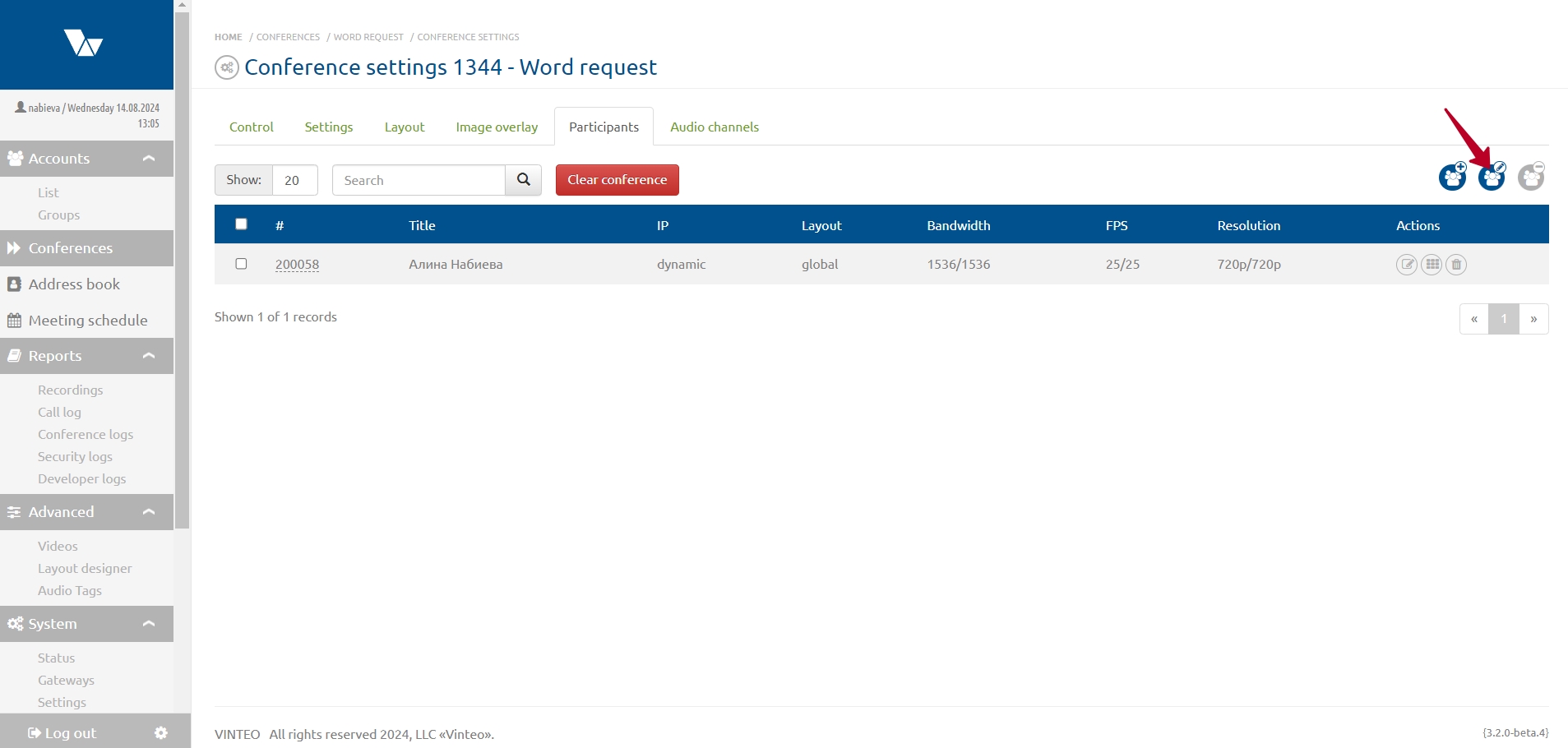
To edit multiple participants, select the subscribers using the checkboxes, click “Edit selected participants”, and choose the required settings:
- Bandwidth – sets the maximum bandwidth for this participant;
- Resolution – sets the maximum resolution of the incoming video stream from the participant;
- FPS – sets the maximum frames per second of the incoming video stream from the participant.
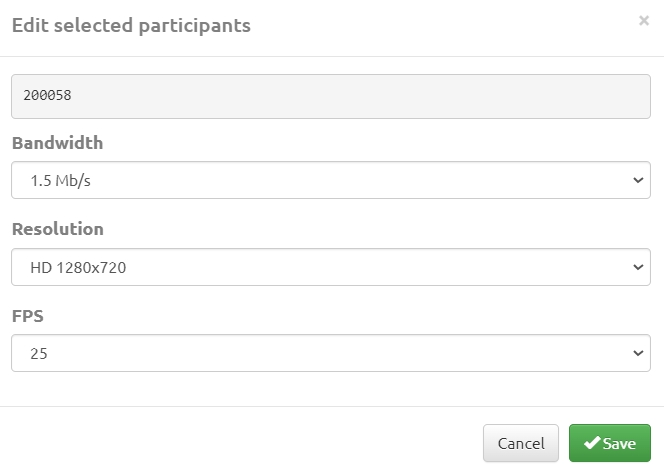
After finishing the settings, click “Save”. To edit a single participant, use the “Edit” button in the Actions column of the participant list.
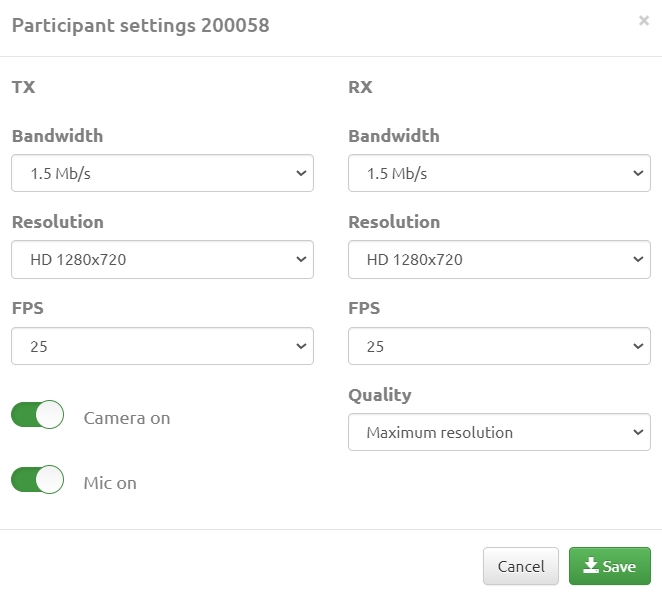
The following settings are available in the modal window:
- Quality algorithm – the participant connection algorithm to the conference server; it defines bandwidth, resolution, frame rate, and other parameters;
- TX channel – sets the upload bandwidth from the participant to the server; affects the maximum available resolution from the participant to the server;
- RX channel – sets the download bandwidth from the server to the participant;
- TX resolution – defines the maximum resolution of the video stream from the participant to the server;
- RX resolution – defines the maximum resolution of the video stream from the server to the participant;
- TX FPS – sets the maximum frames per second of the video stream from the participant to the server;
- RX FPS – sets the maximum frames per second of the video stream from the server to the participant;
- Camera ON – if disabled, the participant will connect with video turned off;
- Microphone ON – if disabled, the participant will connect with audio turned off.
To edit a personal mosaic layout, use the “Mosaic” button in the Actions column of the participant list. After selecting a custom layout, a third button — “Placement” — becomes available in the Actions column, allowing you to set the participant placement on the previously selected custom layout.