

Logs configuration
In the “System” section list, there is an item called “Log Settings”, which provides access to the page with the same name. Here you will find two tabs: “Log Settings” and “Call Log Settings”.
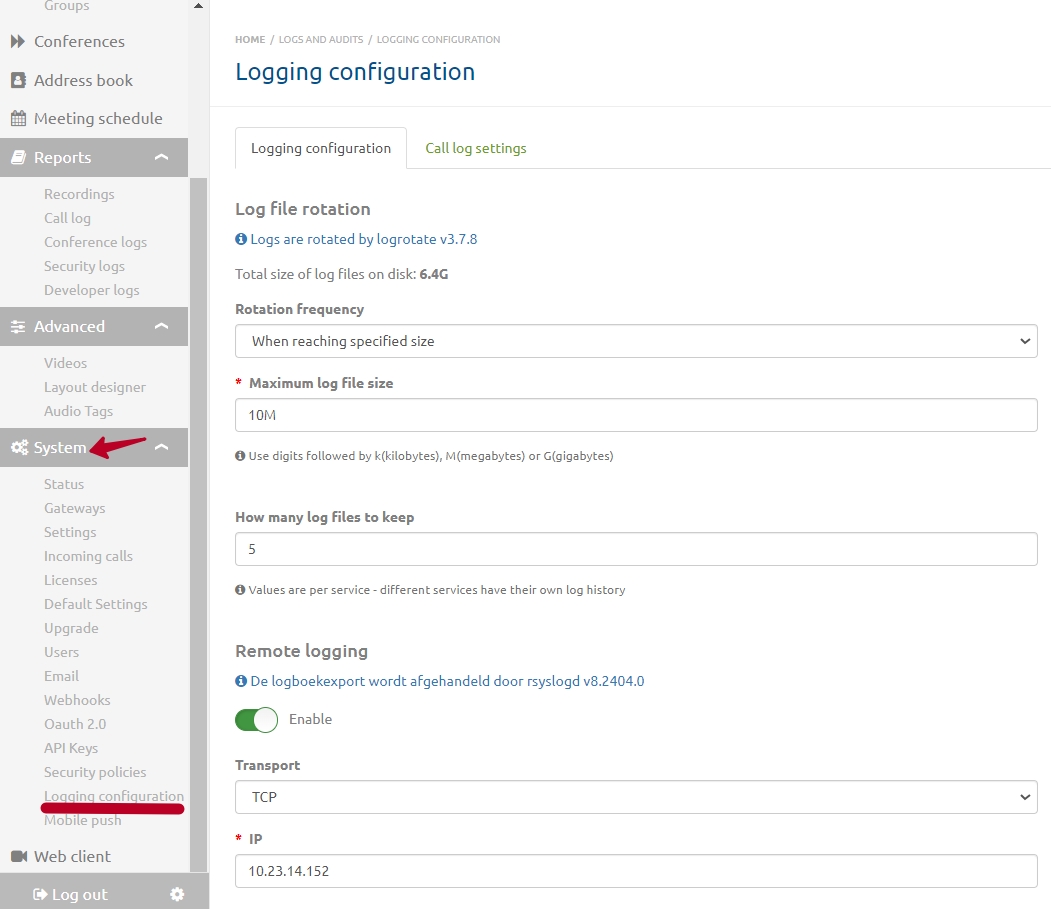
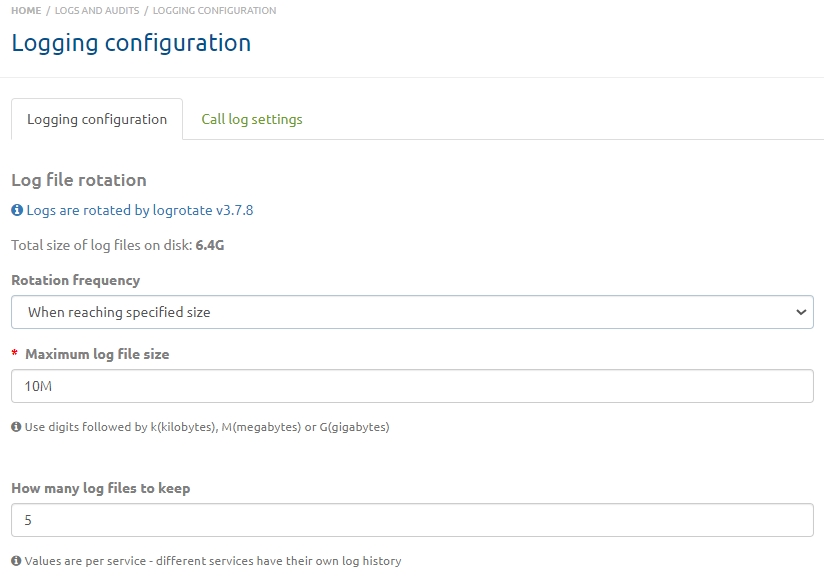
On the “Log Settings” tab, you can configure log file rotation. If this is not done, the storage may become full.
In the “Rotation Frequency” field, you can select the rotation frequency from the dropdown list:
- every day;
- every week;
- every month;
- every year;
- “When the specified size is reached” — the log file size can be set in the field below.
You can also specify how many log files to keep.
This page also provides functionality for exporting logs over the network. To set export parameters, enable the toggle.
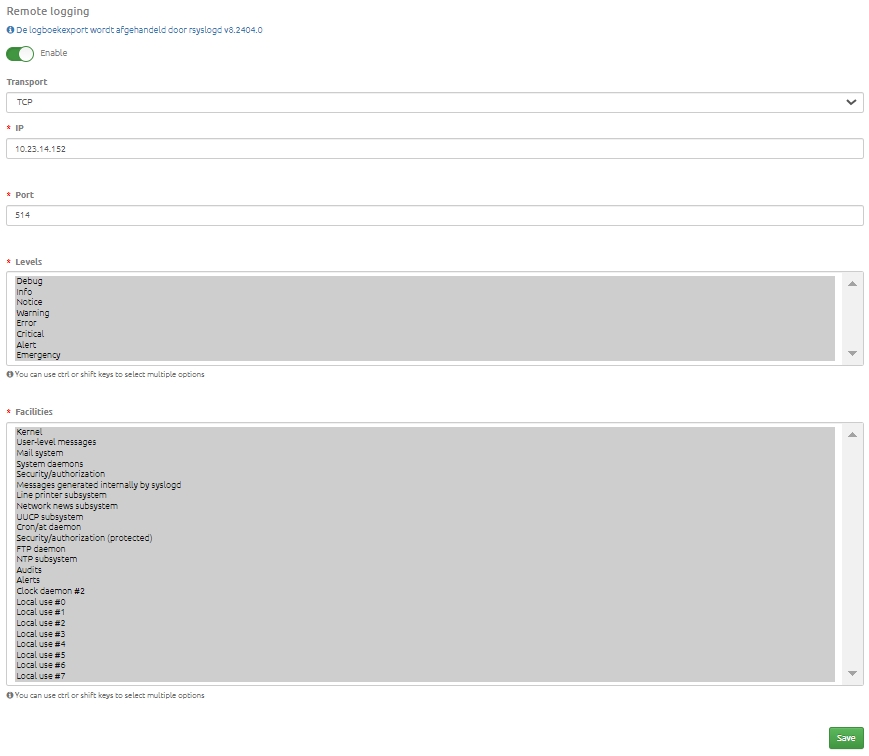
- In the “Transport” field, select the protocol type: TCP or UDP;
- specify the IP address;
- specify the port number;
- select levels in the field below — you can use Ctrl or Shift to select multiple options;
- select categories — you can use Ctrl or Shift to select multiple options;
- save the selected parameters by clicking the button at the bottom of the page.
“Call Log Settings” Tab
This tab contains settings for maintaining detailed call logs and generating reports.
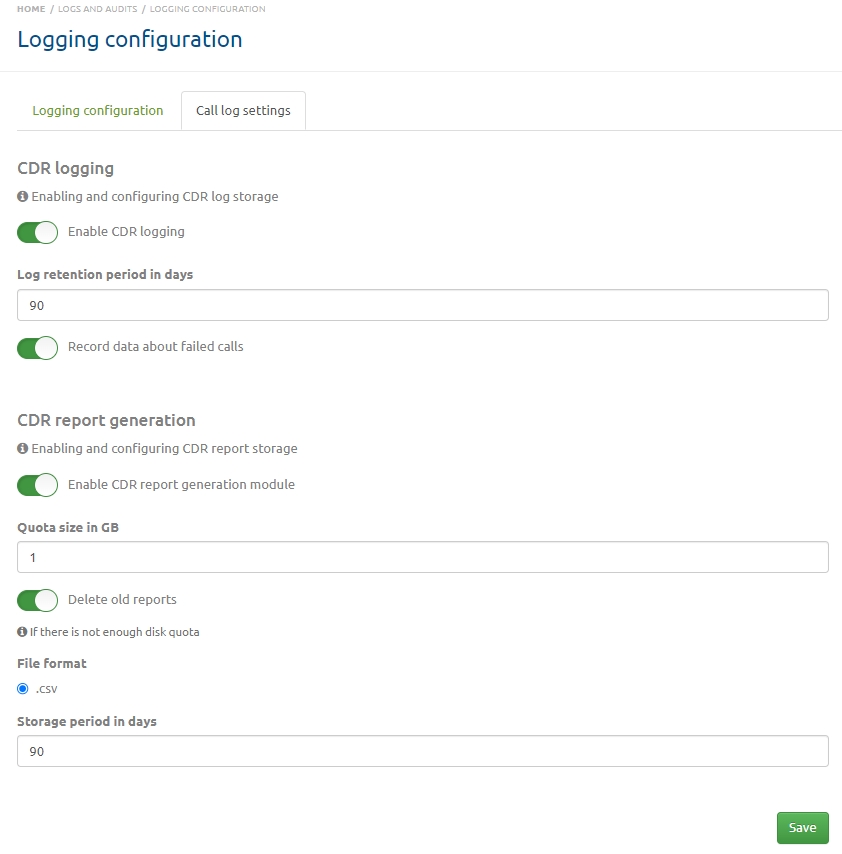
To enable call logging, activate the “Enable CDR logging” toggle and specify how many days the logs should be stored.
The toggle below allows recording data about failed calls in the log.
To generate reports with detailed call records, activate the “Enable CDR report generation module” toggle and specify the allowed quota size in gigabytes. The report is generated in a .csv file.
If the allocated storage space for reports is insufficient, enable the “Delete old reports” toggle and specify how many days the report will be stored.
Then click the “Save” button.