

Description of configuration
This page is available only if the “Vinteo Layout Builder” license is activated.
The Layout Builder allows you to create a custom layout with specific properties (roles), which can define the placement of the presenter, the previous presenter, scroll positions, display of an empty screen, or auto-select positions (default settings).
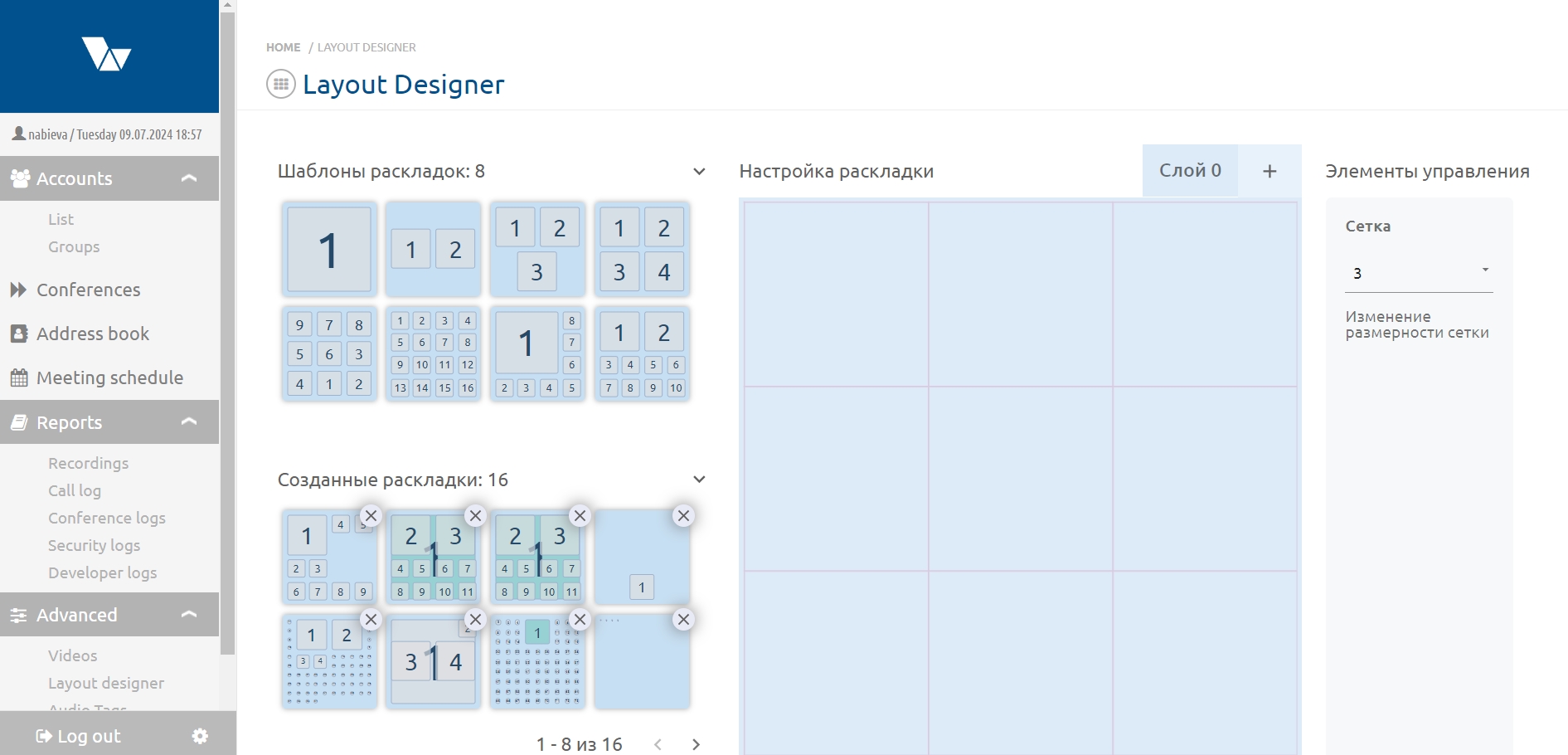
The page contains the following sections:
- “Layout Templates” – this section contains a set of default layouts (8 in total), which can be edited in the “Layout Settings” section;
- “Created Layouts” – this section displays layouts previously created in the builder. These layouts can also be edited in the “Layout Settings” section;
- “Layout Settings” – the section where layouts are created or edited;
- “Controls” – the section where you can change the number of layout positions, the layer number, clear the layout of positions, and save the created layout.
Creating a new layout
To create a new layout, you must define the number of layers and the size of each layer.
Each layout can have up to three layers, and the size of each layer depends on the number of positions: from 1 to 12×12 positions.
Positions in the layout are panels that display participants. Positions are added by clicking on the grid of the layer and can be stretched across several grid cells by dragging the position downward while holding the cursor on its bottom-right corner. Positions can be moved around the layout by hovering over them and holding the left mouse button. All positions are numbered sequentially, and this order is preserved when these positions are occupied by participants in a conference, provided that the positions are assigned the auto-select role.
After creating a position, you can change its number or role in the “Edit Position” window by clicking the position with the left mouse button.
Roles and placement:
- Presenter – position role for displaying the active speaker or the participant assigned by the conference administrator as the presenter (shown in bright turquoise in the layout builder);
- Previous Presenter – position role for displaying the participant who was the presenter before the current presenter (shown in orange in the layout builder);
- Auto-select – the default position role, allowing connected participants who are not assigned to other positions to occupy these positions (shown in light gray in the layout builder);
- Empty Screen – a layout position that remains always unoccupied by participants (shown in dark gray in the layout builder);
- Scroll – a layout position used for rotating participants who do not fit on the layout. They will appear in this position according to the conference setting “Scroll Period” (shown in light blue in the layout builder).
Order of display in layers:
Layer 0 is the bottom layer. Positions in layer 1 are displayed above layer 0, and positions in layer 2 are displayed above layer 1 (which is above layer 0). This allows you to create a layout where participant images overlap in three layers.
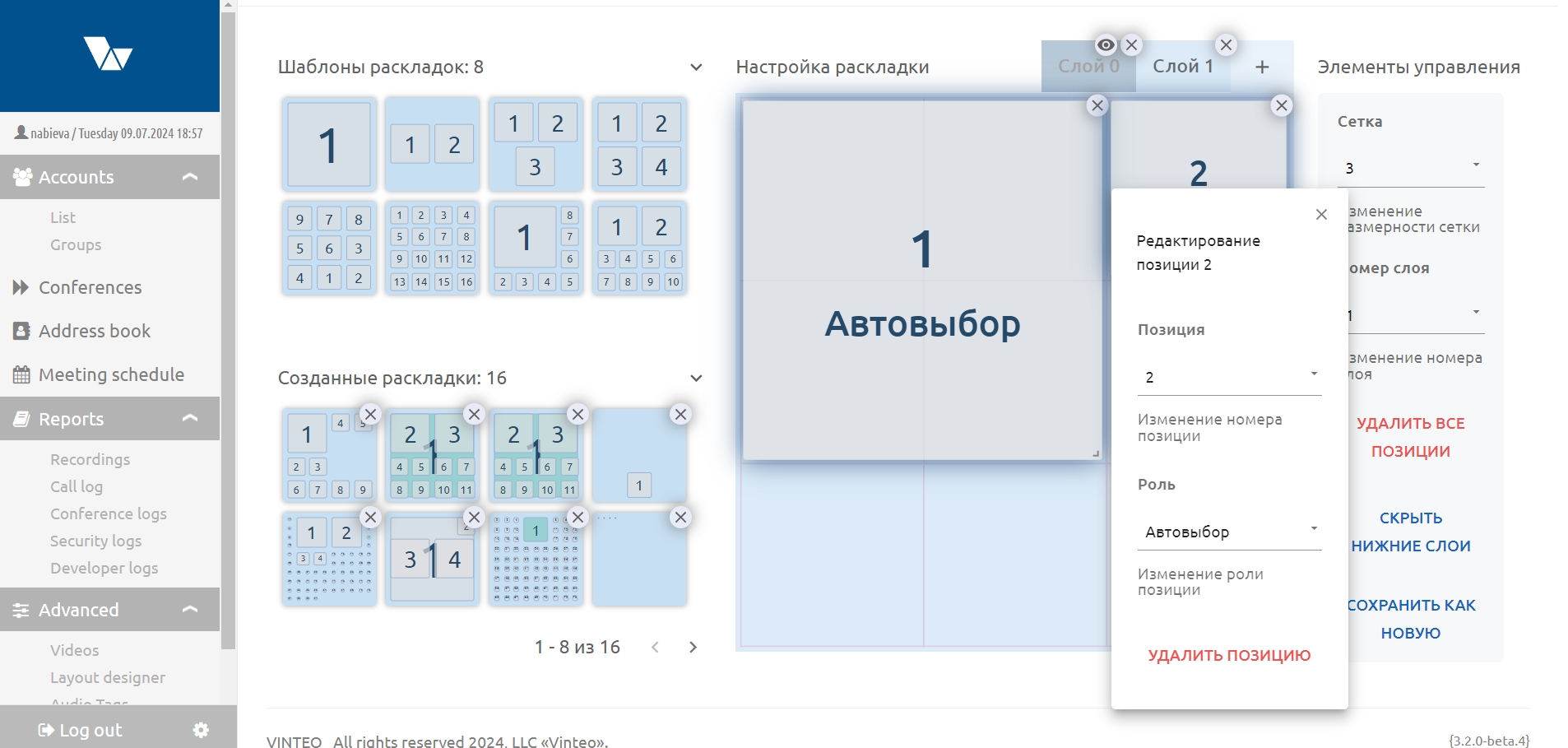
The created layout is saved by clicking the “Save as new” button located in the “Controls” section.
After saving, the layout appears in the “Created Layouts” section and also on the “Conference Management” page in the “Select Mosaic” window under “Custom Layouts”.
- Multilayer layouts are not available in the conference mode “Do not display own video.”
- The roles assigned in the layout work only if the participant placement in the conference is not predefined by the conference administrator.