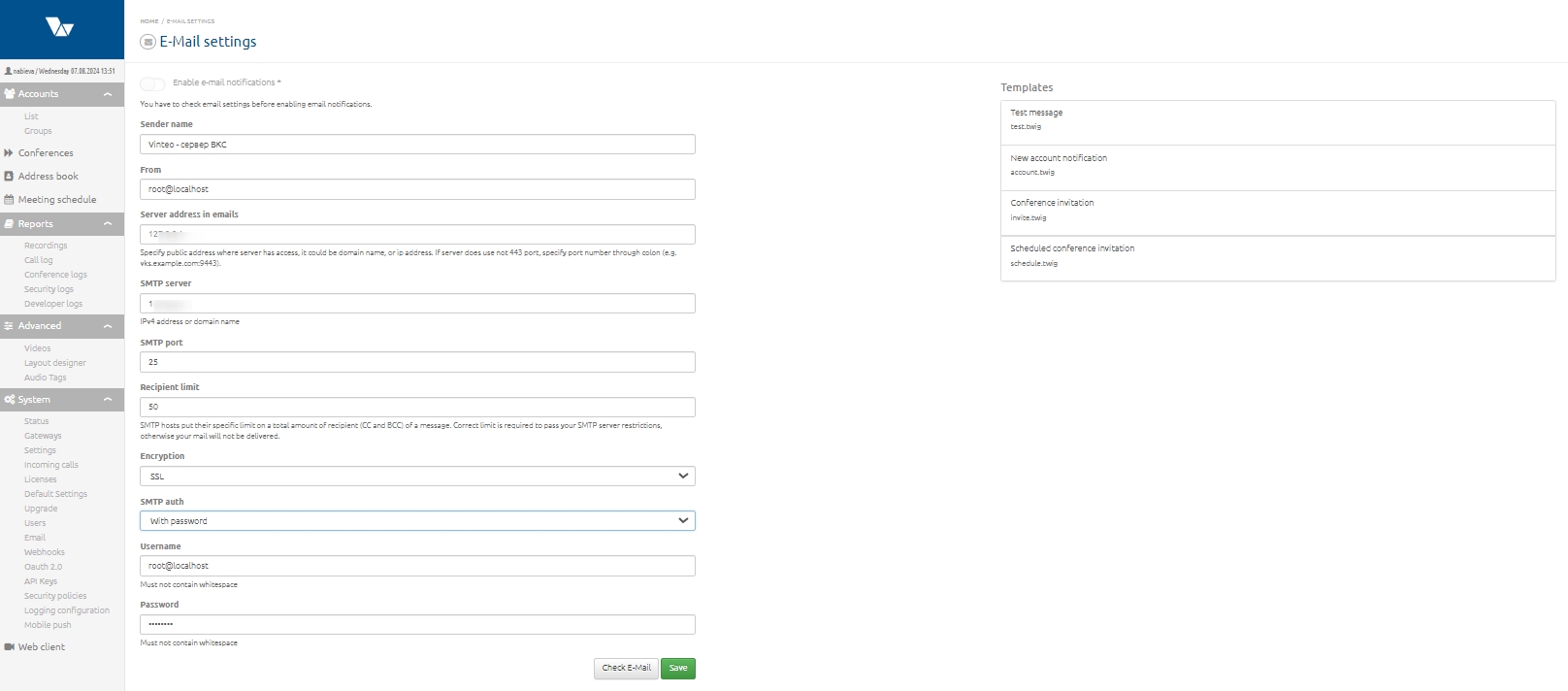
Email section
This section allows you to configure email notifications for conference participants and edit email templates that will be sent to participants, such as: test email; notification about creating a new subscriber; invitation to a conference requiring a PIN; notification about a scheduled conference with connection links.
To create an email template, fill in the following fields:
- “Sender name” – enter a name that will be displayed to the recipient in the email subject;
- “From” – enter the sender’s email address;
- “Server address in emails” – specify the IP address or domain name accessible to the server. If the server does not use port 443, add the port number after a colon (for example, vks.example.com:9443);
- “SMTP server” – enter an IPv4 address or domain name;
- “SMTP port number” – set using the buttons on the right side of the field;
- “Maximum number of recipients” – specify this value because SMTP servers have limits on the number of recipients per message. To prevent the SMTP server from blocking messages, configure this value according to the recommendations of the email service used;
- “Encryption” – choose the encryption protocol: SSL, TLS, or none;
- “SMTP authentication” – choose authentication: password-based or anonymous.
The fields “Username” and “Password” must be filled in if the authentication method “With password” is selected. Click “Save” below the email settings form. Then you can test whether the SMTP server receives messages. To do this, click “Test email” and enter the email address to which the test message should be sent.