Incoming Calls
The page contains 3 tabs:
- “Incoming Settings”;
- “Blacklist”;
- “Whitelist”.
The “Incoming Settings” tab contains rules for blocking incoming numbers, as well as calls based on the time spent in the IVR.
Many of our customers are familiar with the fact that if the server is located on the Internet, numerous SIP calls from unknown subscribers arrive at the server, occupying licenses and, quite simply, spamming. To avoid related issues, the Vinteo VCS server has an anti-spam system.
On this tab, the following parameters are available for configuration:
-
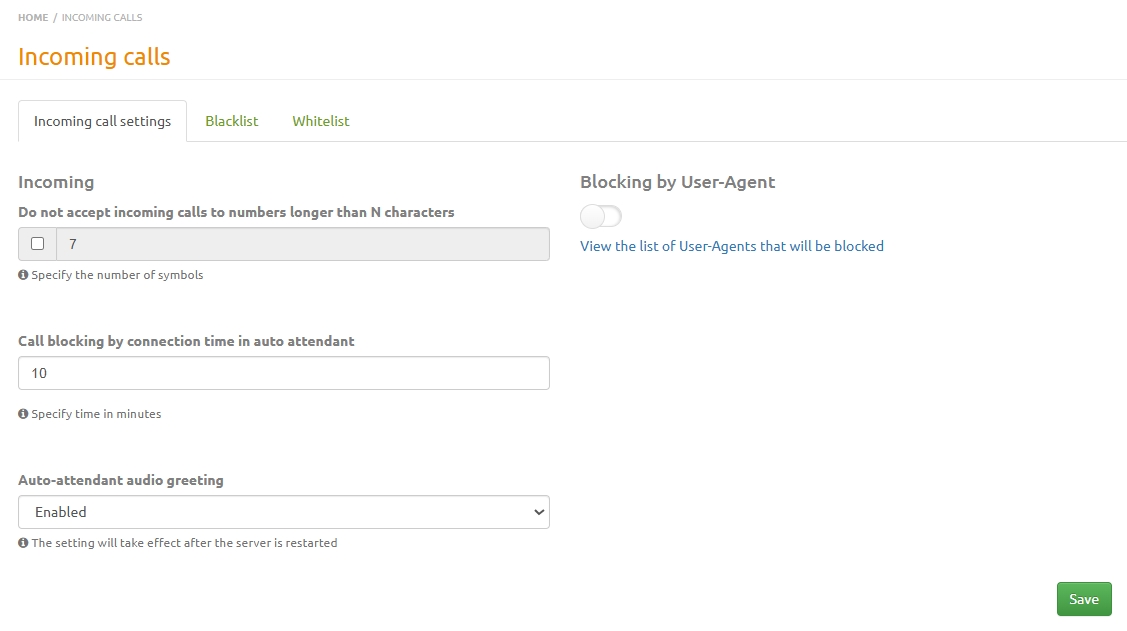
“Do not accept incoming numbers longer than N characters” — a parameter that allows the server to automatically reject an incoming call to numbers longer than the specified value. We recommend setting the value to 7, because international numbers that spammers typically call have ten or more digits. If your server is integrated with PSTN and P2P calls to telephone numbers are required from clients, then the value should be set to “11”.
-
“Block calls by time connected in IVR” — a parameter that allows disabling an incoming call if the connection stays in the IVR longer than the specified time. If the blacklist is enabled, this address will be added to it. The blacklist entry will be marked with “blackhole” under the IP address.
3.“IVR Audio Greeting” — a setting that allows enabling or disabling the audio greeting. You can also set a parameter to disable the audio greeting for video calls. By default, the audio greeting is enabled.
- “Block by User-Agent” — a toggle that blocks connections based on User-Agent. Below is a link to the list of blocked User-Agents.
On the “Blacklist” tab, there is a toggle “Enable blacklist” — this controls the built-in firewall on the server. The server will automatically drop packets from all IP addresses listed in the blacklist. When the blacklist is enabled, all calls that match the first parameter (“Do not accept incoming numbers longer than N characters”) will be added to the blacklist.
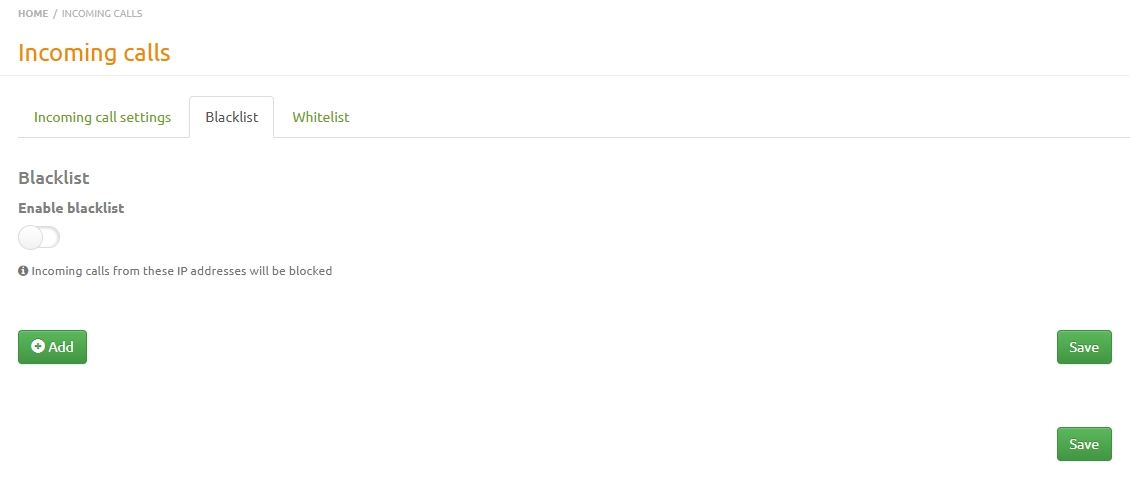
The blacklist is displayed below and contains information about the blocked IP address and the reason for blocking (as a label under the IP address).
If a participant cannot connect to a conference or cannot make a call to the server, it is possible that the participant has been added to the blacklist. Their IP address can be found in the blacklist and removed by clicking the removal button. Then click “Save”.
Registered subscriber IP addresses and gateway IP addresses from the “System” → “Gateways” section are not added to the blacklist.
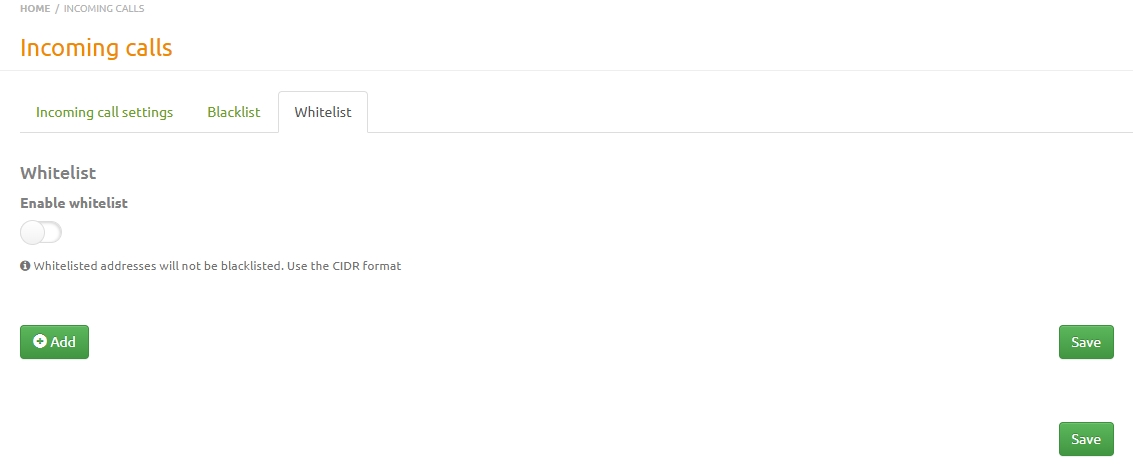
The “Whitelist” tab allows you to define IP addresses that will not be added to the blacklist. This feature is enabled using the “Enable whitelist” toggle.