

Configuration
This page allows you to configure the conference’s overall mosaic layout, choose the desired layout, place participants on the screen, define system positions for the lecturer or participant rotation, etc.
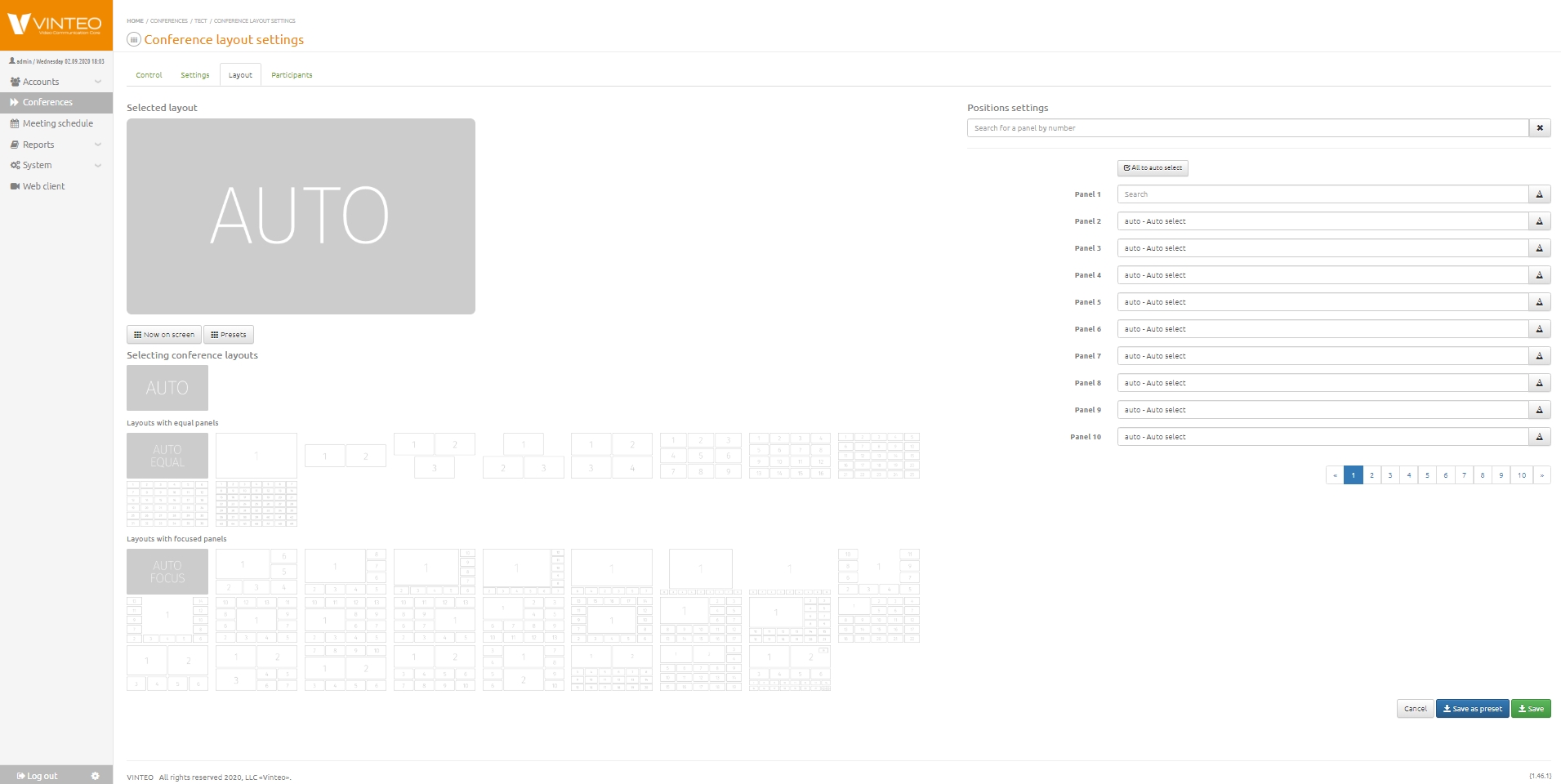
The page displays the selected mosaic in the upper left corner, with the available layouts below it. In the upper right corner, there are elements for assigning panels, a button to set all positions to auto, and a field for searching positions (panels).
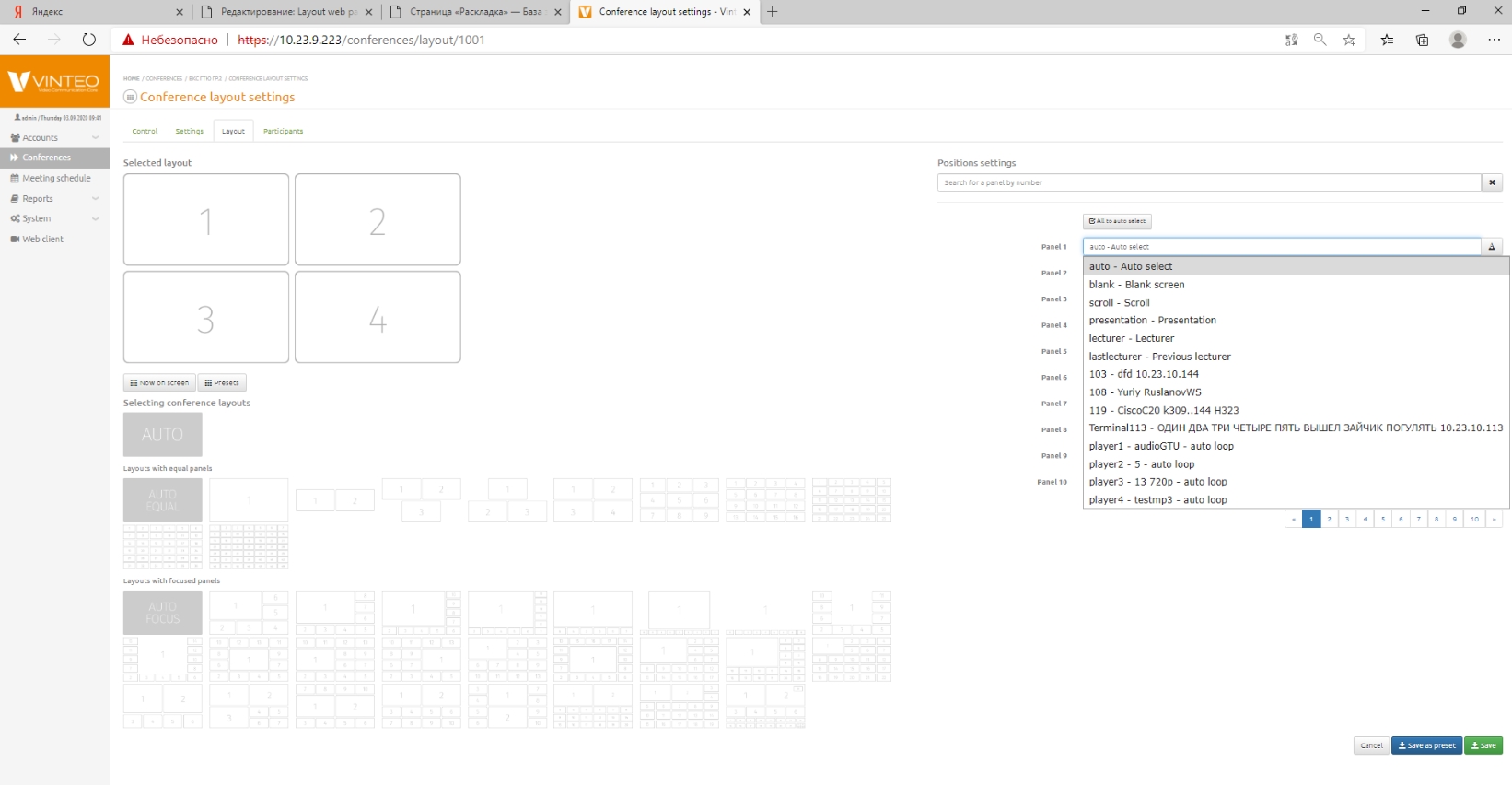
To set a panel value, place the cursor in the corresponding panel field. A list of available values and participants will appear. Connected participants are highlighted in green and sorted for easier selection. The panel value field includes a search feature that filters the list to only show values that partially or fully match the entered text. The search works by participant number, participant name, or participant IP address.
After selecting a layout or assigning panel values, click “Save” in the upper or lower right part of the screen.
To save the settings as a Preset (saved layout configuration), click “Save as preset” in the upper or lower right part of the screen. The saved preset will be available on the “Presets” tab in the “Mosaic” window on the Conference Management page.
A detailed description of layouts is provided in Appendix 1.