

“Reports” Section
The “Reports” section is located in the left-side functional panel and contains links to the pages: “Recordings”, “Call Logs” (“Logs”), “Security Logs” (“Audit”), and “Developer Logs”. This section allows searching for reports on video calls between subscribers, conducted conferences, and provides detailed reports on participant connections during conferences and actions performed within the system.
Recordings
On this page, you can view recordings of all conferences available in the server’s local storage. You can download a video in mp4 format or delete it using the buttons in the “Actions” column of the “Recordings” list.
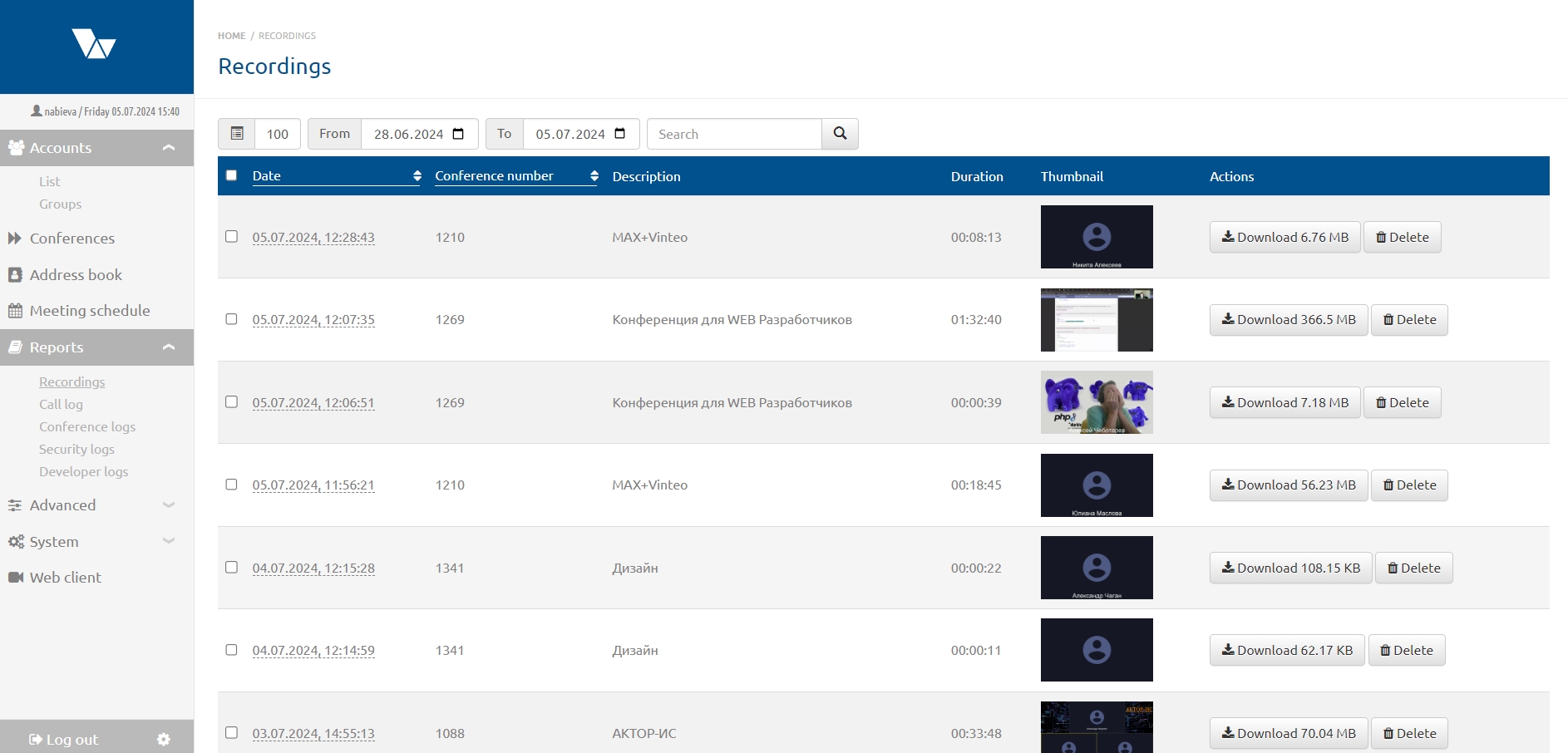
To reduce the number of displayed rows, select a date range and click “Search”. By default, the period is set to seven days.
Limitations
If the “Hard Disk” block on the server’s main page indicates insufficient space, recording will be impossible.
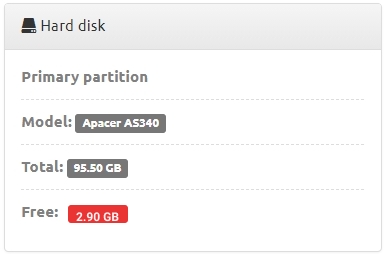
When clicking the “Record” button at the top of the “Conference Control” page, a warning message will appear:
“Not enough free disk space, available: … GB”
Access to Recordings
The administrator has full access to all conference recordings.
Moderators can only access recordings of conferences where they are currently moderators. If a moderator is replaced, recordings become available only to the newly assigned moderator.
Moderators are allowed to delete their own conference recordings.

Scheduled conferences are removed from the conference list after completion, and their assigned number is released. The moderator loses access to their recordings. A recording is tied to the conference number, not to the moderator. If a new or scheduled conference uses the same number as a past conference with a recording, the recording becomes available to the new conference moderator.
Recording Conversion
Conversion allows you to convert a recording into different video formats or an audio file, and also to reduce the size of the audio file by converting it to a lower bitrate.
For example, converting to mp3 is useful when you need to send an audio recording as an email attachment under 30 MB.
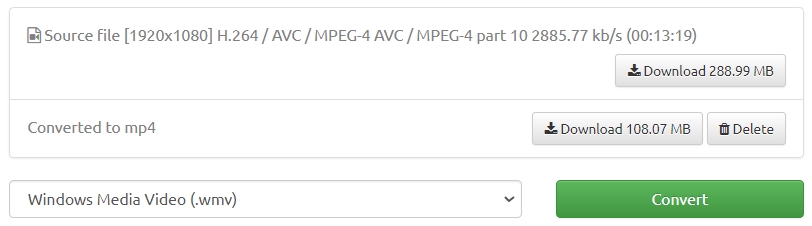
To convert a recording, click the link with the recording date and time.
On the recording page, select the desired bitrate and sampling rate from the dropdown list on the left. Click “Convert.
The converted file will appear under the original file, and you will be able to download or delete it.
Call Logs
The “Call Logs” page opens when selecting this item in the “Reports” section. The page contains two tabs: “Calls” and “Reports.
You can search by participant number.
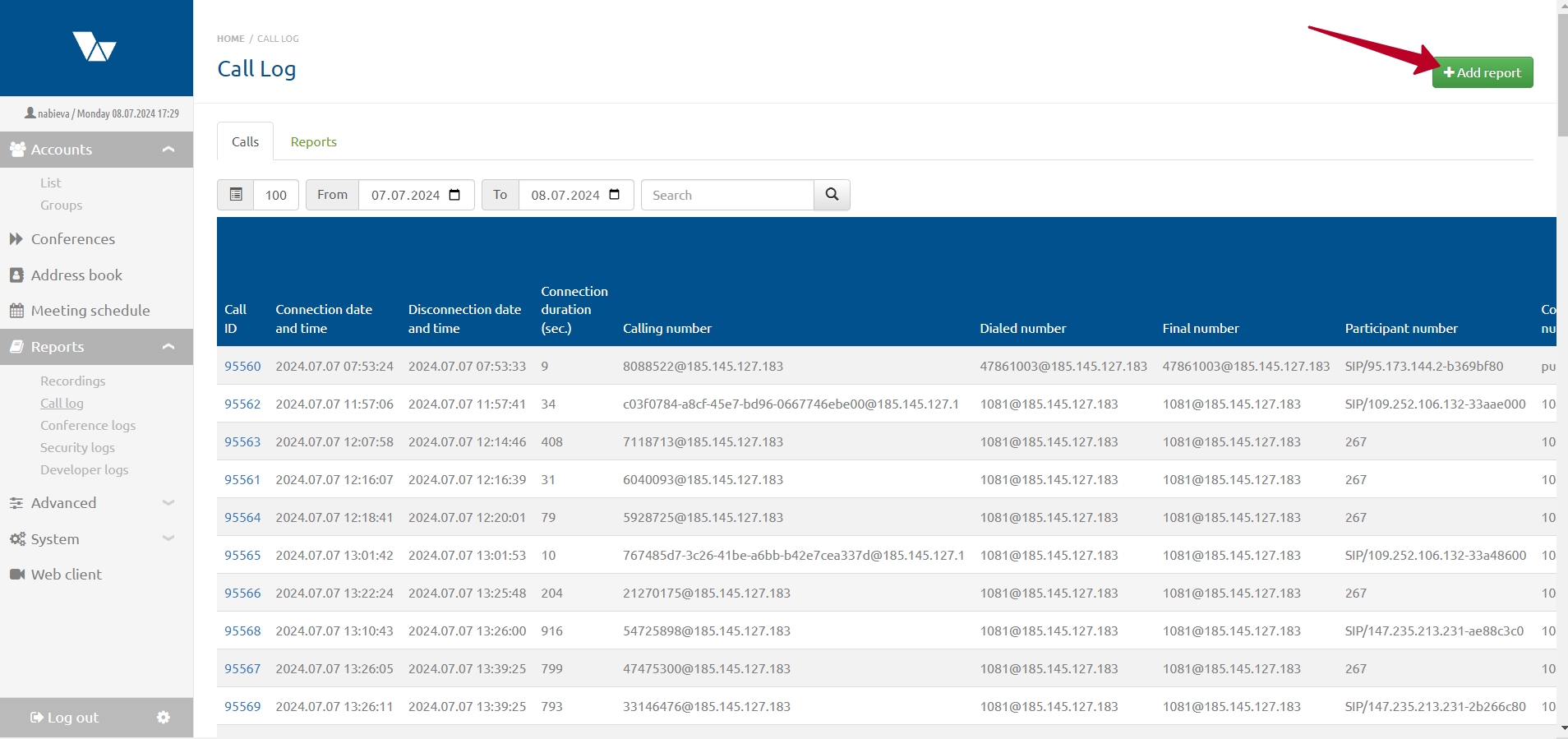
The “Calls” tab contains a table from which you can generate a report with the following data:
* Call ID
* Connection/disconnection date and time
* Duration
* Calling number (or IP address)
* Called number
* Final number
* Participant number
* Conference number
* Caller name
* Watermark
* Signaling protocol
* Connection type
* Traffic resolution
* Bitrate
* Video and audio codecs
* Number of transmitted packets
* Number of lost packets (for outgoing/incoming calls)
* Jitter (at disconnection time)
* Disconnection side
* Disconnection event code
* Tenant
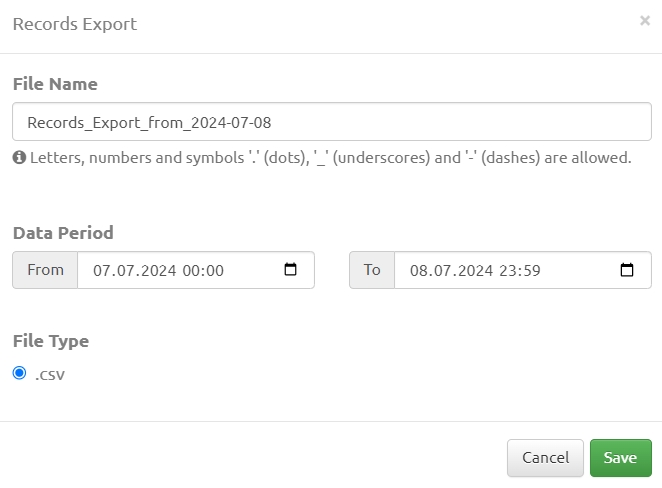
To generate a report, click “Generate Report” in the top right corner.
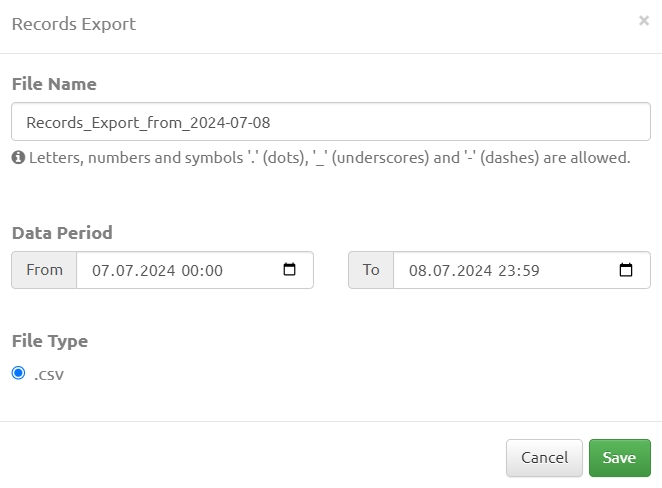
In the “Export Records” window, specify the file name, set the reporting period, and click “Save.
The report is generated as a .csv file.
Conference Logs
When selecting “Conference Logs” in the left functional panel, the “Logs” page opens, providing access to conference logs.
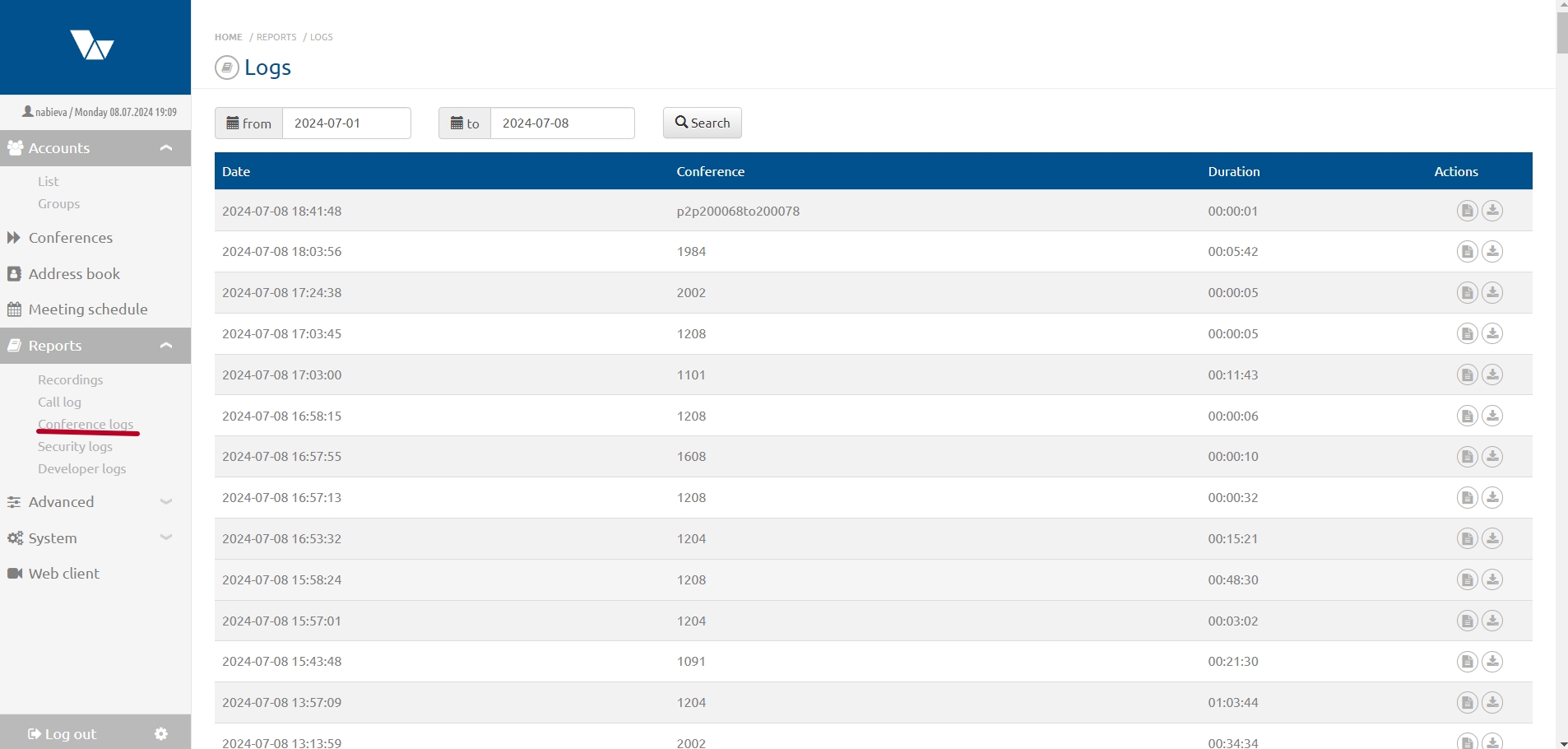
Conference logs are copied after the VCS session ends.
A VCS session is the period from when the first participant joins a conference until the last participant leaves.
You can search for the desired period using the search bar above the table.
Logs can be viewed or downloaded using the buttons in the “Actions” column.

Security Logs
On the “Logs and Audits” page, this section provides information about:
* system updates
* patch installations
* installation errors
* webcast events: start time and participants
* user actions: login/logout, conference start/stop, enabling/disabling conference features, etc.
* recordings: joining and leaving conferences
* event logging related to protocol access (SSH), web server access and errors, and logs from the previous server version
Developer Logs
When this section is selected, a .bin file is generated and downloaded.
This file should be sent to technical support if you cannot resolve issues independently.