

In the “System” section list, there is an item called “Mobile PUSH Notifications”, which provides access to the page with the same name.
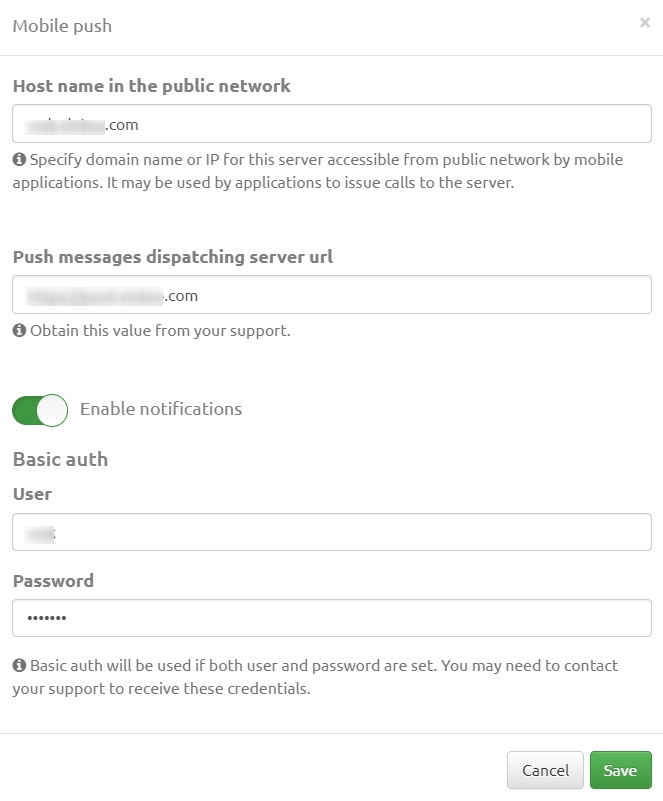
To configure mobile push notifications, click the “Manage” button in the top right corner of the page. Then, in the opened window, configure notification sending:
- specify the name or IP address of the server that mobile devices can call;
- contact support to fill in the “Push Notification Server URL” field;
- then specify the username and password so that the “Enable Notifications” toggle becomes active;
- click the “Save” button.
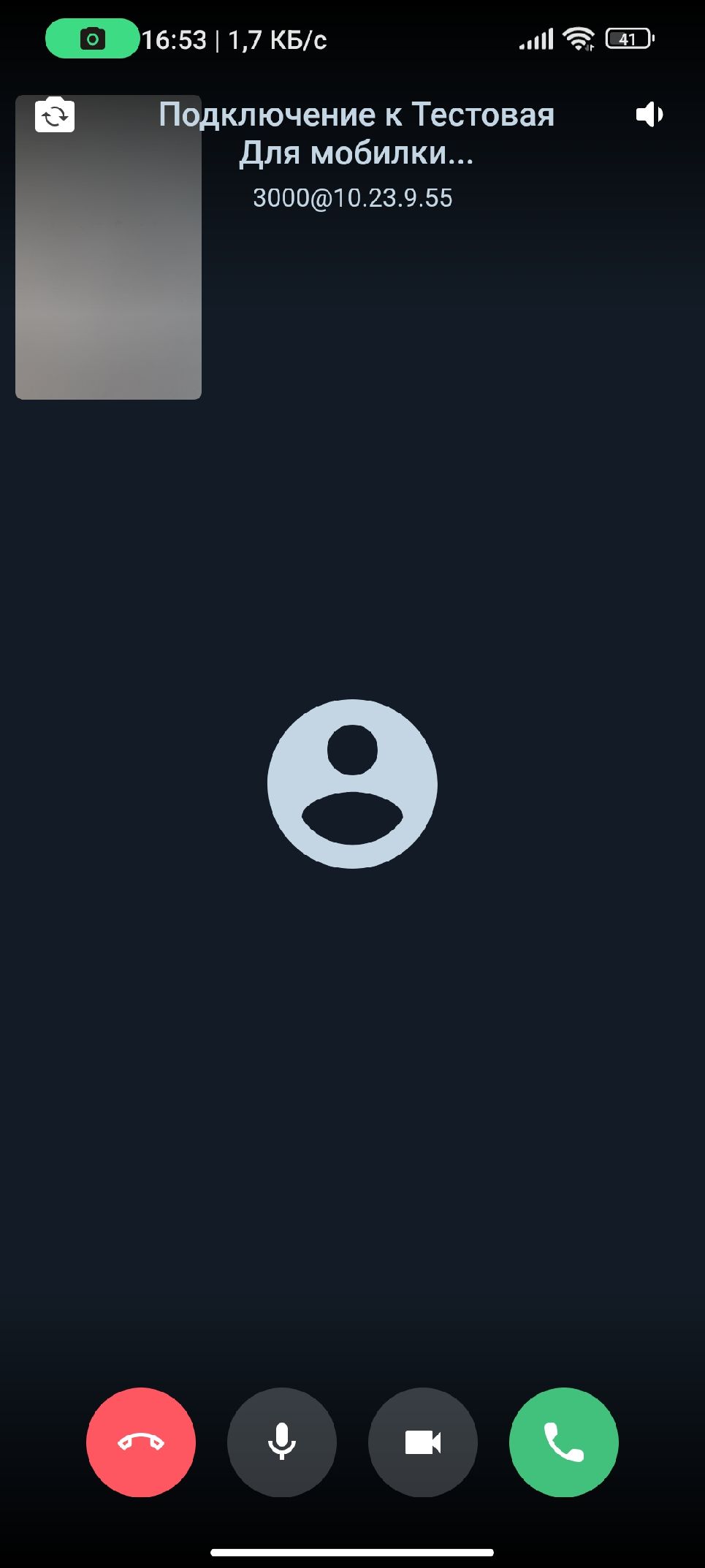
Subscribers who have logged in on mobile devices after configuring push notifications are displayed in the table on the page. If a subscriber was authorized before configuring push notifications, they will need to re-authenticate. Then this subscriber can be added to a conference and called from the context menu. At the moment of the call, if the phone screen was locked, the mobile app opens with an incoming call and control buttons: “Accept”, “Mute/Unmute Microphone”, “Turn Camera On/Off”, and “Decline”.
If the phone screen is active, a push notification window appears with the “Accept” and “Decline” buttons.
You can also pre-configure the application (this action does not apply to all phones) by checking the last three items shown in the picture.