Accounts
To navigate to this page, in the main configuration menu select “Accounts” from the drop-down list, then choose the “List” menu item — the “Account List” page will open.
Main Window
The main window is divided into two parts:
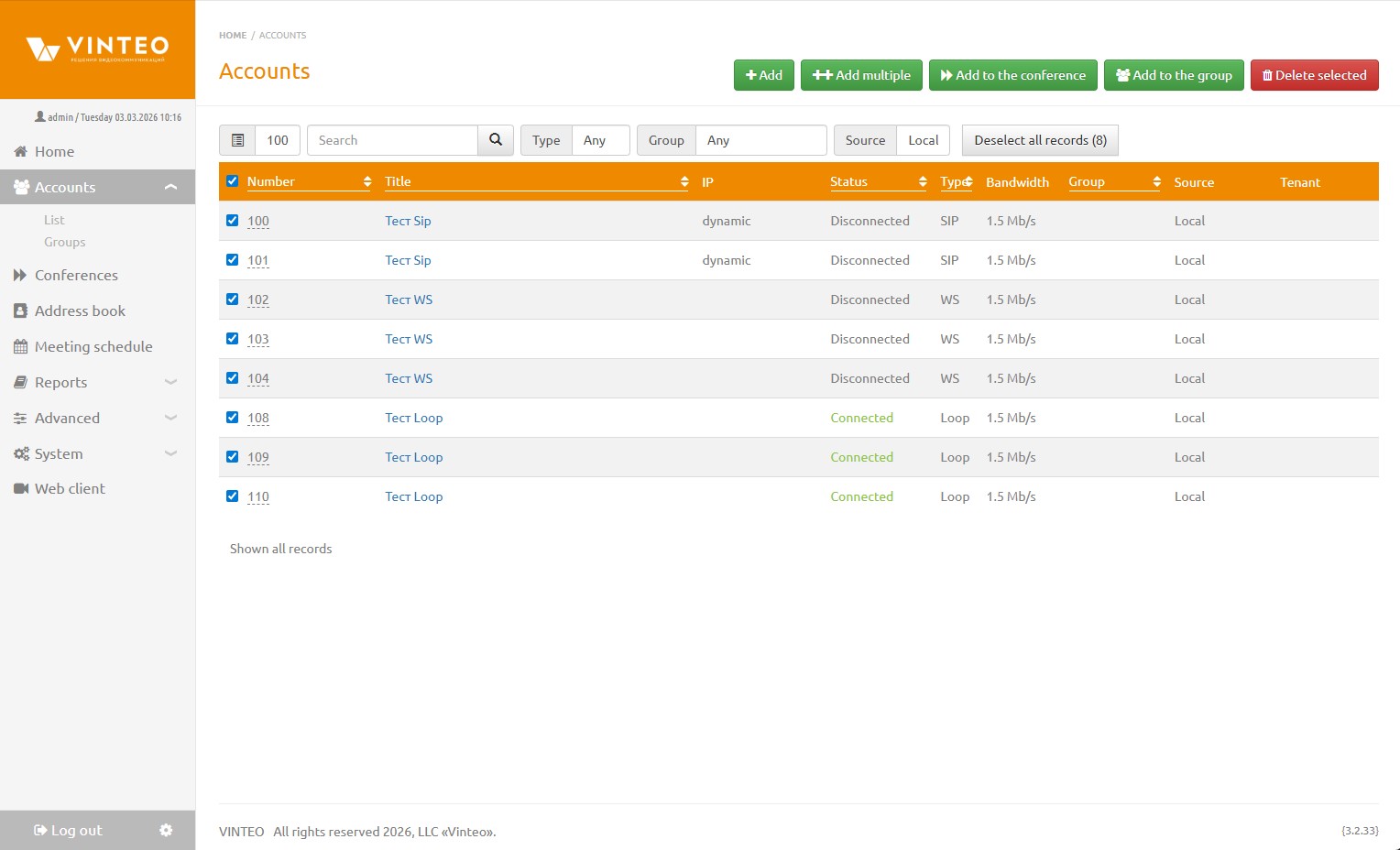
- The top panel contains the management buttons “Add”, “Add Multiple”, “Add to Conference”, “Add to Group”, “Delete Selected”. The last three appear after selecting one or more accounts using the checkboxes.
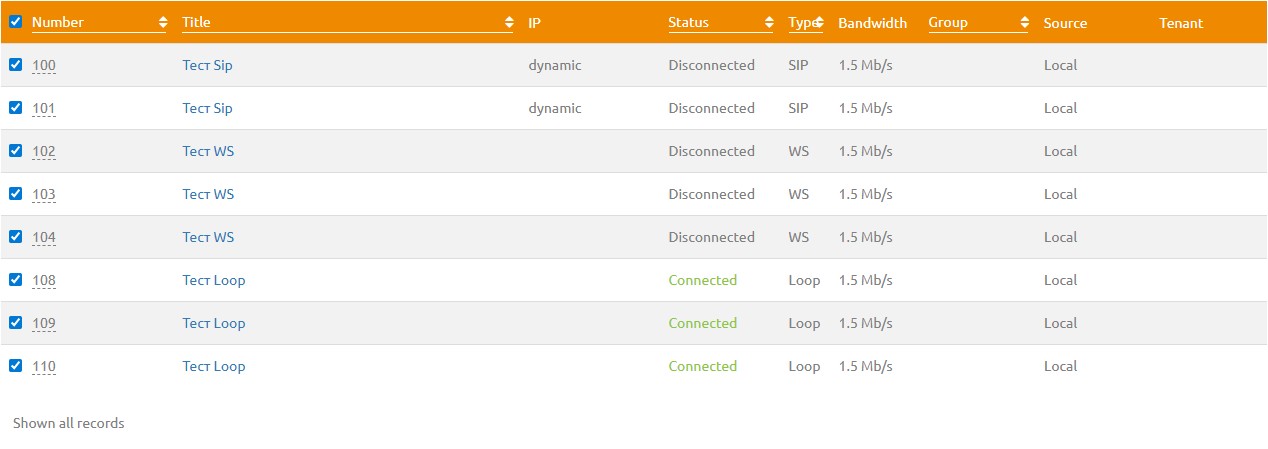
- The table section contains filters, sorting options, and the list of accounts.
Filters
Filters allow you to quickly select the required accounts based on specified criteria, simplifying search and data management.
“List (icon)” – allows displaying 25, 50, or 100 records per page.
“Search” – searches by Number, Name, IP, Type, Group, or Email fields.
“Type” – account type: WS, SIP, H.323, Loop, LDAP.
“Group” – Any, No group, Specific group.
“Source” – Local, Any.
“Clear filter” – resets all filters to default values.

Sorting
The sorting function allows organizing the list of accounts by the selected column — “Number”, “Name”, “Status”, “Type”, or “Group”. This simplifies searching, viewing, and managing accounts by allowing quick access to the necessary records and organizing data in a convenient working order.
Add
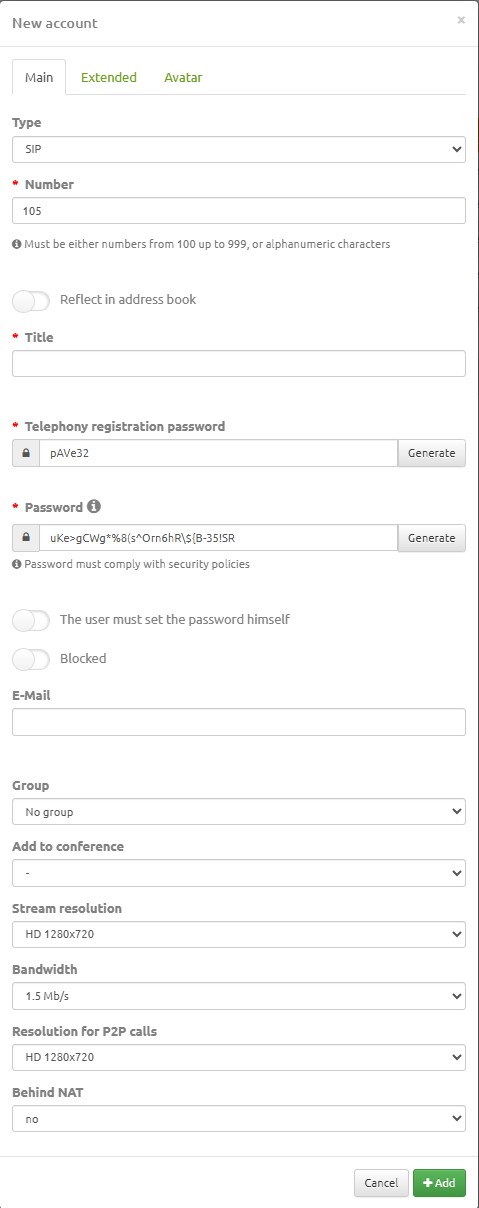
To add an account, click the “Add” button in the upper-right part of the screen. The modal window that appears contains three tabs: “Main”, “Extended”, “Avatar”.
Then enter the account data.
To save the entered information, click the “Add” button.
“Main” Tab
Depending on the selected account type, the “Main” tab contains different settings.
-
Type – selection of the account connection type. Possible values:
*SIP – participant connects via SIP protocol;
*H.323 – participant connects via H.323 protocol;
*WS – participant connects via WebRTC technology (Vinteo Desktop or Web client);
*Loop – participant connects as a subscriber of a remote server configured on the Gateways page (for example, a PBX subscriber, Lync/Skype for Business, Asterisk). -
Number – numbering starts from 100 by default. May contain digits and Latin letters. The number is also:
*Account identification number;
*login for registering subscriber equipment on the server;
*login for accessing the VINTEO personal account. -
“Reflect in address book” – shows the account in the address book.
-
“Title” – displayed account name.
-
“Telephony registration password” – password for SIP/H.323 registration. Automatic generation is available.
Notice:This field is displayed only when the Type field is set to SIP or H.323
-
“Password” – password for system login. Automatic generation is available.
-
“The user must set the password himself” – when enabled, the user sets the password at first login.
-
“Blocked” – a toggle that blocks access to the subscriber’s account on the server. This option does not block registration or calls.
Attention!WS subscribers use web features, so when this option is enabled, they cannot authorize or make calls.
-
“E-mail” – email address for notifications about scheduled conferences.
-
“Group” – drop-down list of previously created groups.
-
“Add to conference” – drop-down list of previously created conferences.
-
“Stream resolution” – defines the default video resolution used in conferences.
-
“Bandwidth” – defines the data transmission channel width from subscriber equipment to the “VINTEO” server. This parameter affects the default connection speed when joining a conference.
-
“Resolution for P2P calls” – defines the video resolution used in point-to-point calls.
-
“Behind NAT” – enables/disables network address translation technology when connecting to the server.
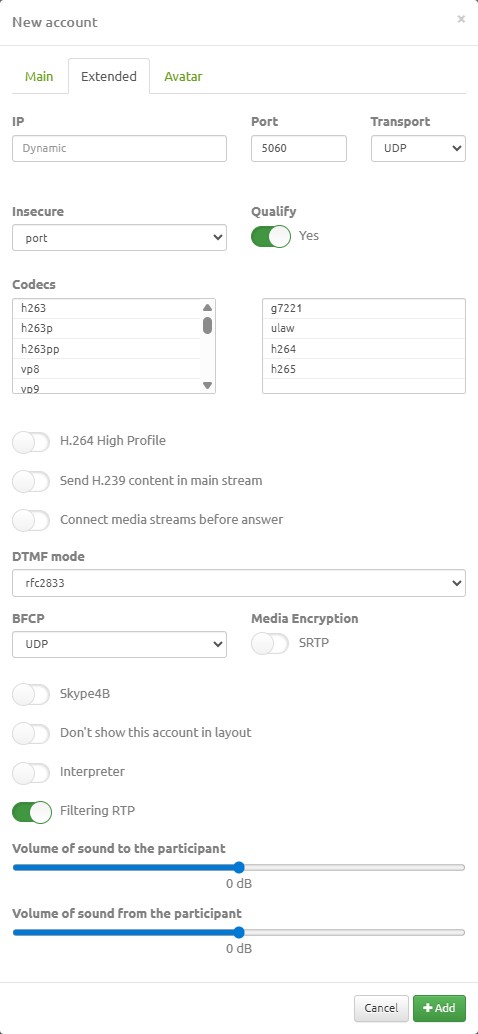
“Extended” Tab
Depending on the selected account type, the “Extended” tab contains different settings.
-
IP – filled with the account IP address when connecting via SIP in “without registration” mode or H.323 in “without registration on gatekeeper” mode. In registration mode, this field is set to
dynamicby default. -
Port – port numbers of the connected account. SIP – port 5060, H.323 – port 1720.
-
Transport – defines the data transfer protocol for SIP account connections and media streams. Values: UDP, TCP, TLS.
Notice:This field is displayed only when the Type field is set to SIP
-
Insecure – defines SIP connection parameters and has a drop-down list. Possible values:
Notice:This field is displayed only when the Type field is set to SIP
*Port – allows IP verification without checking the source port;
*Invite – allows skipping authentication of incoming Invite messages;
*Very – ignores authorization (username/password); -
Qualify – enables/disables sending SIP Options messages to confirm the account is reachable.
Notice:This field is displayed only when the Type field is set to SIP
-
Codecs – scrolling list of supported audio and video codecs. The interface provides two lists: selected codecs on the right and available codecs on the left. Codecs are moved by single-clicking their name.
-
H.264 High Profile – the device must support this standard. Disabled by default.
Notice:This field is displayed only when the Type field is set to H.323
-
Send H.239 content in main stream – if disabled (default), presentation is sent as a separate H.239 stream. If enabled, presentation is merged with the main video stream.
-
Connect media streams before answer – if enabled, media streams are sent before call acceptance (FastStart), speeding up call setup.
-
H.239 – enables/disables H.239 protocol for presentation stream control.
Notice:This field is displayed only when the Type field is set to H.323
-
H.224 – enables/disables remote camera control (FECC).
Notice:This field is displayed only when the Type field is set to H.323
-
DTMF Mode – defines the DTMF signal transmission method:
*Port – rfc2833 – signals transmitted as RTP notifications (RFC 2833);
*auto – automatic selection;
*inband – signals transmitted within the audio stream;
*info – signals transmitted via SIP INFO messages. -
H4601 – enables/disables NAT traversal for endpoints behind NAT/firewalls.
Notice:This field is displayed only when the Type field is set to H.323
-
Use crypto – enables/disables H.323 traffic encryption.
Notice:This field is displayed only when the Type field is set to H.323
-
BFCP – defines the protocol (UDP/TCP) used for transmitting the second video stream in SIP. None – second stream is not transmitted.
Notice:This field is displayed only when the Type field is set to SIP
-
Media encryption – enables/disables SRTP encryption for SIP media streams.
Notice:This field is displayed only when the Type field is set to SIP
-
Skype4B – applies special settings. Required for “Skype for Business” accounts.
Notice:This field is displayed only when the Type field is set to SIP
-
Gateway – defines which gateway (call route) will be used.
Notice:This field is displayed only when the Type field is set to Loop
*auto – automatically selects the most suitable gateway;
*specific gateway – account is added to the selected gateway routes. -
Don’t show this account in layout – enables/disables automatic layout display. Useful, for example, for interpreter accounts.
-
Allow to make group calls – allows scheduling calls via Vinteo Desktop.
Notice:This field is displayed only when the Type field is set to WS
-
Interpreter – assigns the account as a conference interpreter.
-
RTP filtering – blocks attempts to send additional media streams from one port.
-
Volume of sound to the participant – outgoing audio level settings.
-
Volume of sound from the participant – incoming audio level settings.
“Avatar” Tab
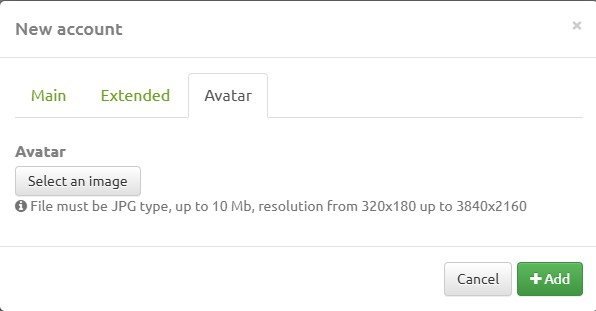
Allows assigning a graphical image to the account.
The avatar is displayed instead of the video stream if:
* the account is assigned in the conference layout but not connected
* the account is connected in “audio-only” mode
Add Multiple
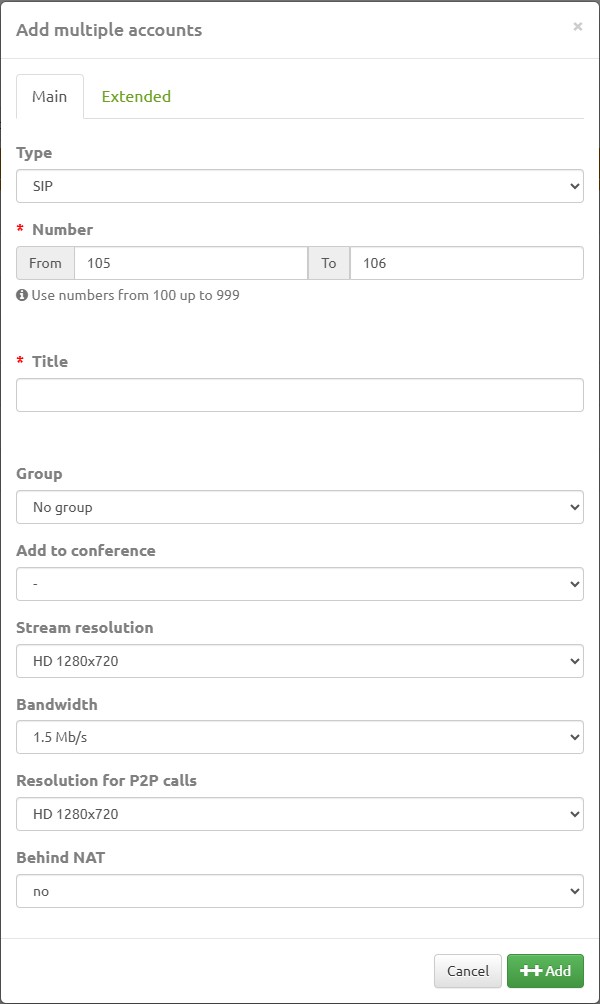
The “Add Multiple” button is used to create several accounts simultaneously.
Connection parameters correspond to those described in the Add section.
Differences:
*The modal window “Add Multiple Accounts” contains two tabs: “Main” and “Extended”.
*The “Main” tab includes the parameters:
*Type, Number, Name, Group, Add to conference, Default resolution, Bandwidth, Resolution for P2P calls, Behind NAT
*Number — specified as a range (start and end value). Accounts will be created within the specified range.
Add to Conference
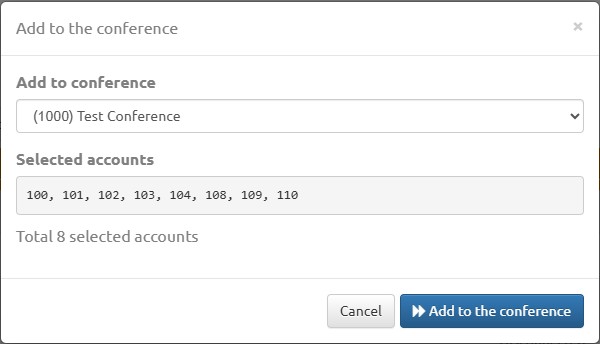
The “Add to Conference” button adds selected accounts (checked with checkboxes) to an existing conference.
The “Add to Conference” modal window contains:
- Add to conference – drop-down list of previously created conferences.
- Selected accounts – field containing the selected accounts list.
Add to Group
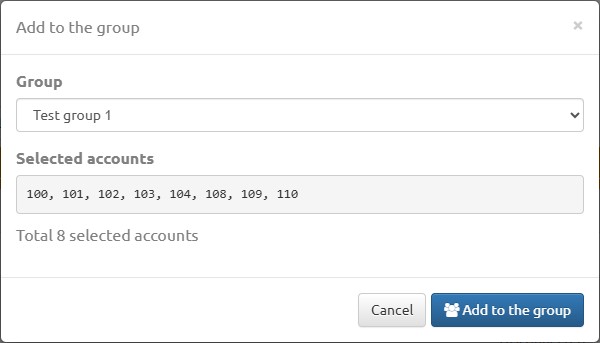
The “Add to Group” button adds selected existing accounts (checked with checkboxes) to a chosen group.
The “Add to Group” modal window contains:
- Group – drop-down list of previously created groups.
- Selected accounts – field containing the selected accounts list.
Delete Selected
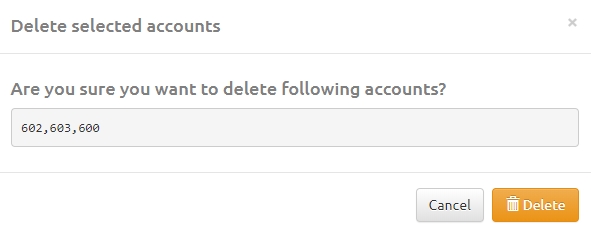
The “Delete Selected” button in the upper-right corner deletes accounts selected with checkboxes.
When deleting an account, you must confirm the action in the modal window by clicking the OK button.