

Videos
Here you can add a video in mp4\mov\m4v\mkv\flv\wmv\avi formats to display it as an additional stream in a conference.
Note: the size of the uploaded video file must not exceed 512 MB, and the bitrate must not exceed 6 Mbps. Videos of this size are uploaded using the Firefox browser. For more details about the requirements and how to convert a video to the required format, see: Converting a video to the recommended format
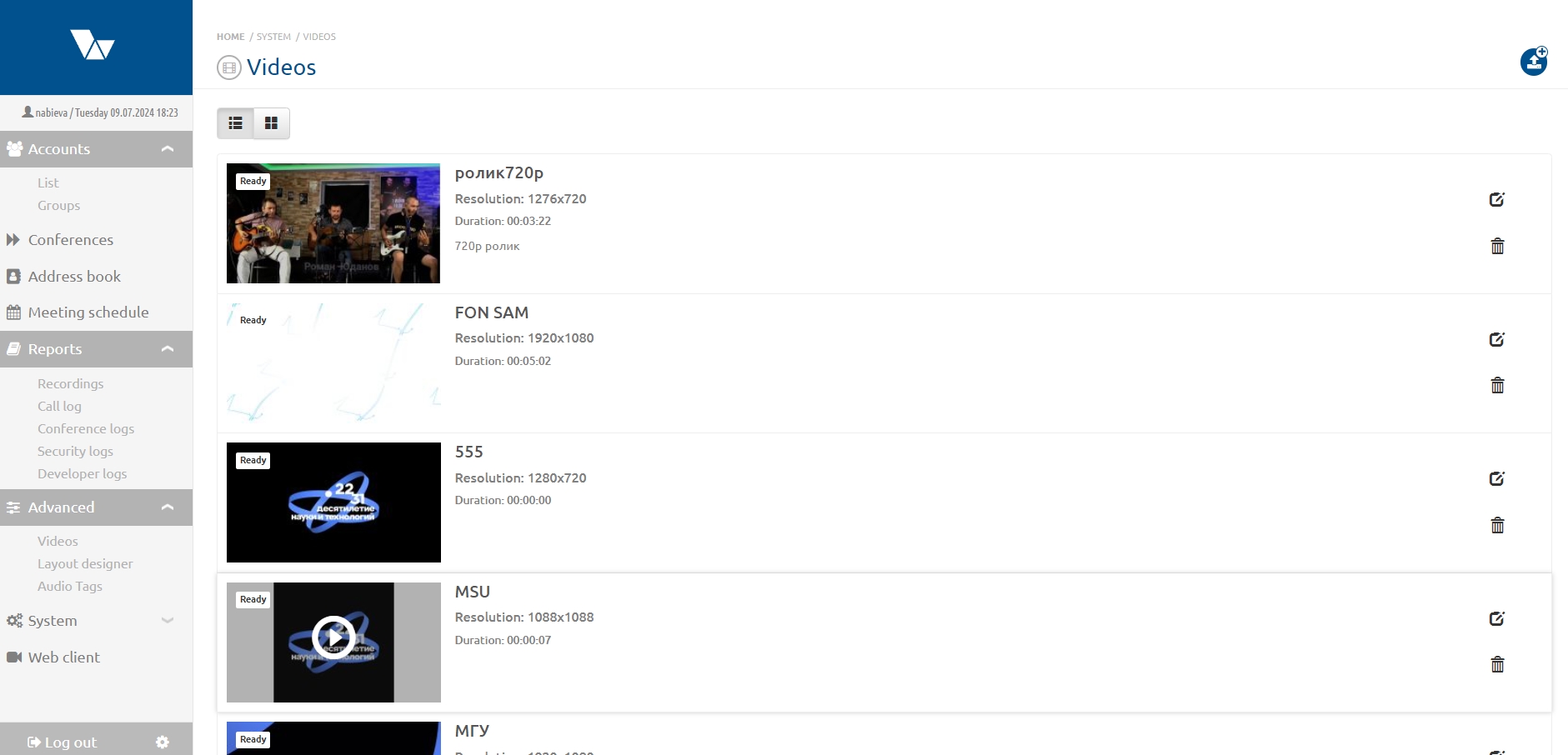
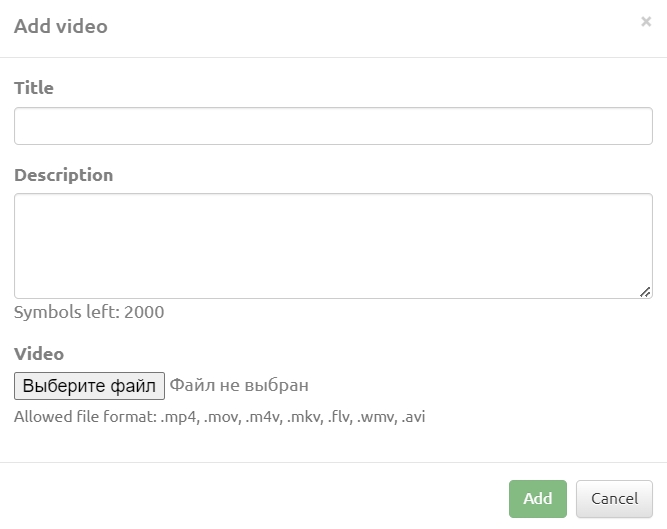
Adding a video
To add a video, use the “Add video” button, then fill in the “Title” and “Description” fields and click “Choose file”. After selecting the video, the “Add” button will become active — click it.
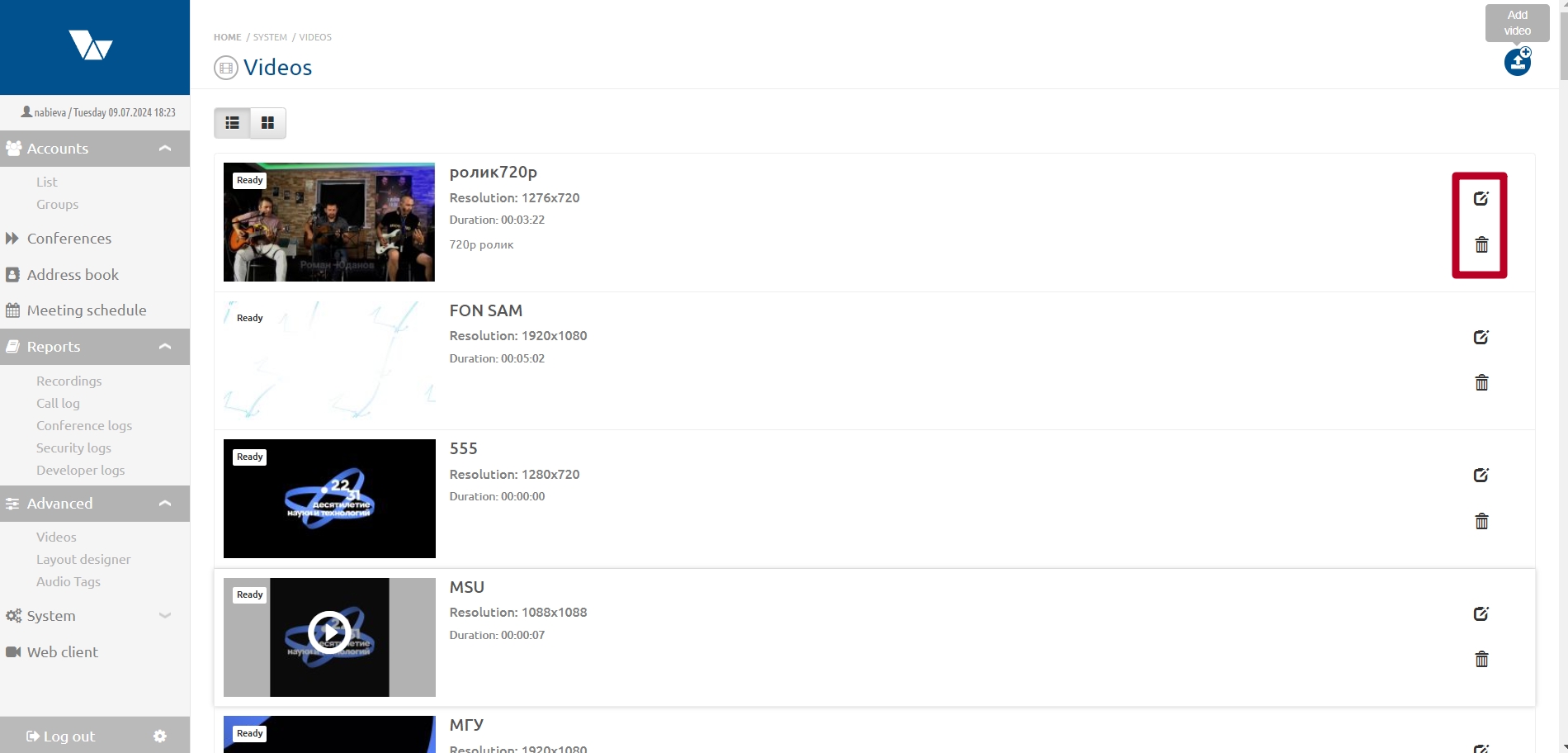
Deleting and editing a video title
To edit the title or delete a previously uploaded video, use the buttons next to the video title.
Converting a video to the recommended format
In the Vinteo video conferencing system, it is recommended to use videos in the following format:
– Video size not larger than 512 MB.
– Video bitrate not higher than 6 Mbps.
– An audio track must be present. If no sound is required, leave the track silent.
– Recommended video codecs: H.264 + MP3 (.MP4).
– Videos in other formats may have playback issues during a conference.
To convert a video to the recommended format, you can use the following instructions:
After conversion, the video file size may increase.
- Download and install the VLC media player.
- Run VLC.
- Press CTRL+R or select “Media” → “Convert/Save”.
- Add the video to the file selection. It should appear in the list of selected files, then click “Convert/Save”.
- Make sure the correct file is selected as the source, choose the “Convert” option and the profile Video – H.264 + MP3 (MP4), choose where to save the final (converted) file, and click “Start”.
- Wait while VLC converts the file. The conversion process will be displayed on the playback timeline, and the window title will change to “Converting file…”.
There will be no notification when the conversion finishes — the conversion is complete when the VLC window title no longer shows “Converting file…”.